 sonar
sonar
Your First Apple Search Ads Campaign in 8 Steps
Apple Search Ads (ASA) put your app at the top of App Store search results — where 65% of downloads originate, according to Apple. But launching without a plan usually means burning budget on broad keywords that don't convert. I've set up ASA campaigns for over a dozen utility and finance apps, and the difference between profitable and wasted spend almost always comes down to the first 30 minutes of setup.
This guide covers how to set up Apple Search Ads step by step: account creation, campaign structure, keyword selection, bid strategy, and the one setting most beginners miss. If you've read our complete Apple Search Ads guide, think of this as the tactical, click-by-click companion.
Step 1: Create Your Apple Search Ads Account
Apple Search Ads requires an Apple ID linked to an App Store Connect account with at least one published app. Go to searchads.apple.com and sign in with the Apple ID that manages your app. Apple will prompt you to accept terms and set your billing country — this determines which storefronts you can target (source: Apple Search Ads Help).
Before you click anything else, choose between two tiers:
| Feature | Basic | Advanced |
|---|---|---|
| Targeting control | Minimal (audience only) | Full (keywords, demographics, locations, dayparting) |
| Reporting | Installs, spend | Impressions, taps, installs, conversion rate, CPA, search terms |
| Keyword management | None — Apple auto-matches | Manual keyword + match type control |
| Bid model | Cost-per-install (CPI) cap | Cost-per-tap (CPT) max bid |
| Monthly budget cap | $10,000 per app (source: Apple Ads Help — Compare Solutions) | No maximum |
For most indie developers, Advanced is the right choice despite the name — Basic offers no keyword-level control, so you can't learn which search terms drive installs. For a deeper comparison, see our Apple Search Ads Basic vs Advanced breakdown.
Step 2: Pick Your Campaign Type and Goal
Apple Search Ads Advanced offers four ad placements as of 2026: Search Results (the original and highest-intent placement), Search Tab, Today Tab, and Product Pages — While You Browse (source: Apple Search Ads Help — Ad Placements). For your first campaign, start with Search Results only. It targets users who are actively searching for something, which means their intent is highest.
When creating the campaign, you'll set three things:
- App selection — choose the app you want to promote.
- Storefronts — select the countries or regions you want to advertise in. Start with one country where you already have organic traction; splitting across 10 markets from day one fragments your budget and muddies your data.
- Campaign budget — this is a lifetime cap, not a daily budget (daily budgets are set at the ad group level). I typically set a campaign budget of $500–$1,000 for a first test, knowing the daily ad group budget is what actually controls daily spend.
Step 3: Structure Your Ad Groups Around Intent
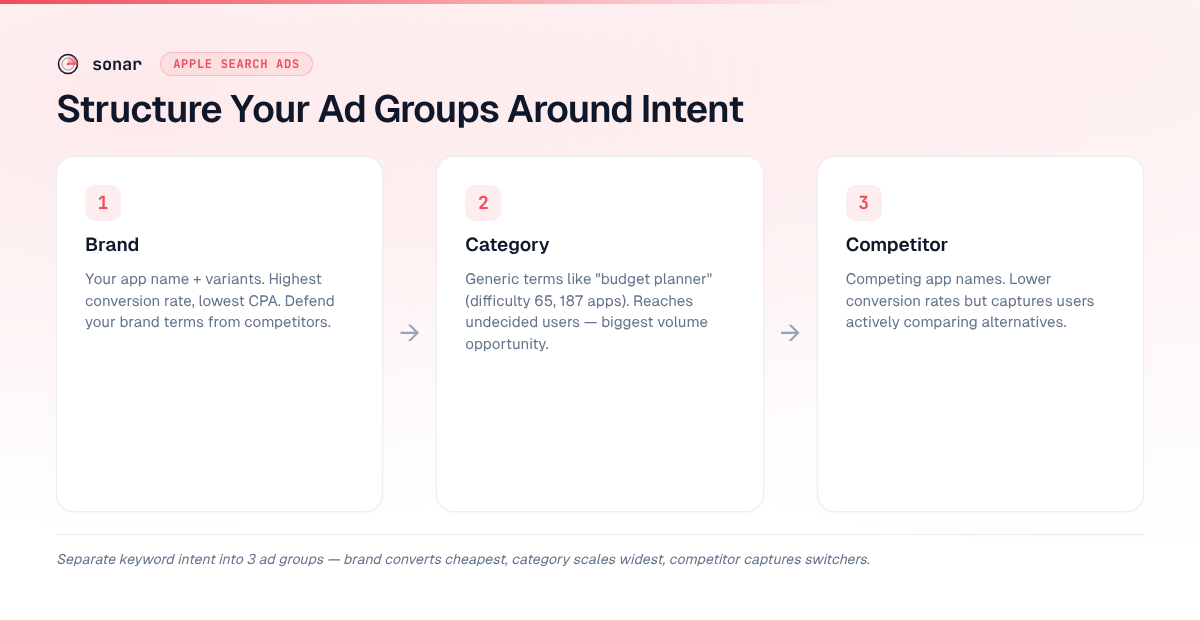
An ad group holds your keywords, audience settings, and bids. The most common mistake I see is dumping all keywords into a single ad group. Instead, create at least three ad groups that separate keyword intent, which is the approach we detail in our ASA campaign structure guide:
- Brand ad group — your app name and close variants. These keywords usually have the highest conversion rate and lowest CPA because the searcher already knows your app.
- Category / generic ad group — broad category terms like "budget planner" or "tip calculator." These reach users who haven't chosen an app yet.
- Competitor ad group — names of competing apps. Conversion rates are typically lower here, but the volume can be significant if your competitors are well-known.
For each ad group, set a daily budget that reflects how much you're willing to spend per day on that intent type. Apple will not exceed the daily budget on any given day (source: Apple Search Ads Help — Budgets).
Step 4: Choose Your Keywords
Keywords are the core of your ASA campaign. You need a list of 15–30 keywords per ad group to start, drawn from three sources:
- Your own ASO metadata — the keywords already in your app title, subtitle, and keyword field. These are terms Apple already associates with your app (see how the keyword field works).
- Competitor metadata — what top competitors rank for. Tools like Sonar show you the exact terms competing apps index on.
- ASA's own suggestions — when you add keywords in the campaign builder, Apple suggests related terms with relative popularity scores.
Real keyword data matters here. Sonar's keyword index puts "budget planner" at iOS popularity 42 and difficulty 65, with 187 apps in the results (source: Sonar /api/v1/keywords/search) — a highly competitive term where Apple Search Ads can help a new app gain visibility that organic ASO alone may never deliver.
Not every keyword behaves the same across platforms. "Tip calculator" shows iOS difficulty 42 but Android difficulty 14 (source: Sonar /api/v1/keywords/search) — the same keyword can have vastly different competition across stores, which directly affects your ASA bidding strategy.
When I pulled Sonar's autocomplete suggestions for "budget planner," all 9 long-tail variants had difficulty scores between 51 and 66 — nearly as competitive as the head term at 65 (source: Sonar /api/v1/keywords/search, /api/v1/keywords/suggestions). That pattern tells you that even long-tail terms in competitive categories face real competition, making paid placement via ASA often the fastest path to visibility for a new app.
For a complete methodology on identifying the right keywords, see our ASO keyword research guide.
Step 5: Set Match Types Correctly
Apple Search Ads offers three match types, and your first campaign should use all of them deliberately. Here's how they work:
| Match type | Behavior | Best for |
|---|---|---|
| Exact Match | Triggers only on the specific keyword you bid on (and close variants like plurals) | High-confidence keywords where you know the intent and are willing to pay a premium |
| Broad Match | Triggers on related searches, synonyms, and phrases Apple deems relevant | Discovery — finding new terms you haven't thought of |
| Search Match | Apple auto-matches your ad to searches based on your app's metadata and category | Pure discovery — no keywords needed, Apple decides |
The strategy I recommend: run a dedicated discovery ad group with Search Match enabled and broad match keywords at a lower bid. Review the Search Terms report weekly. When a search term converts well, add it as an exact match keyword in your main ad group and as a negative keyword in the discovery group to prevent double-serving.
Sonar's autocomplete for "budget planner" surfaces long-tail variants like "budget planner free" (iOS popularity 18, difficulty 66) and "monthly budget planner free" (iOS popularity 7, difficulty 56) (source: Sonar /api/v1/keywords/search) — these are the kind of keywords you'd discover through a Search Match campaign and then move to exact match.
For a deeper explanation, read our match types guide.
Step 6: Set Your Default Max CPT Bid
Your max CPT (cost-per-tap) bid is the most you'll pay for a single tap on your ad. Apple runs a second-price auction, so you'll often pay less than your max bid — but setting it too low means your ads won't show, and setting it too high means you overpay while the algorithm learns (source: Apple Search Ads Help — Bids).
A practical starting framework:
| Scenario | Suggested starting CPT | Rationale |
|---|---|---|
| Brand keywords | $0.30–$0.75 | High conversion rate offsets modest bids |
| Category keywords (moderate competition) | $0.75–$2.00 | Competitive auctions require higher bids for impression share |
| Category keywords (high competition, e.g., "budget planner") | $2.00–$4.00 | A keyword with 187 competing apps (source: Sonar) needs aggressive initial bids to gather data |
| Competitor keywords | $1.00–$3.00 | Varies by competitor brand strength |
| Discovery / Search Match | $0.50–$1.50 | Lower bids because conversion rates on unknown terms are unpredictable |
These ranges are directional — your actual CPT depends on category, geography, and competitors. Apple's suggested bid range in the campaign builder gives you a market-specific starting point.
Step 7: Configure Audience and Scheduling
Before launching, review two settings that most first-time advertisers skip:
Audience refinement. Within each ad group, you can filter by:
- Customer type — new users, returning users, or users of your other apps. For a first campaign, target "All Users" to gather the broadest data, then segment later.
- Demographics — age and gender. Only restrict these if your app has a clearly defined audience (e.g., a pregnancy tracker). Over-restricting limits Apple's ability to find converting users.
- Locations — target specific states, cities, or regions within your selected storefront.
Ad scheduling (dayparting). You can limit ads to specific days and hours. I leave this open for the first 2 weeks to surface natural demand patterns, then shift budget away from low-performing time windows.
Step 8: Review and Launch
Before clicking "Start Campaign," double-check this pre-launch checklist:
- App Store listing is polished. Your screenshots, title, subtitle, and description are your ad creative — ASA pulls directly from your App Store metadata. If your conversion rate is low, the campaign will burn money regardless of how good your keywords are. See our conversion rate optimization guide for benchmarks.
- Tracking is configured. If you use an MMP (Adjust, AppsFlyer, Branch), confirm attribution integration is live before spending. Apple also provides the Apple Ads Attribution API, returning attribution data for up to 30 days after a tap (source: Apple Developer Documentation — AdServices).
- Negative keywords are set. Add irrelevant terms upfront. If you're a paid budget app, add "free" as a negative keyword in your exact-match ad group to avoid paying for taps from users looking for free alternatives.
- Budget caps are correct. Verify both the campaign lifetime budget and the daily ad group budget. A common error: setting a $10 daily budget but a $50 campaign budget, which exhausts the campaign in 5 days.
Once everything checks out, hit "Start Campaign." In my experience, Apple typically reviews and approves ads within 24–48 hours, though most campaigns I've launched were approved in under 2 hours.
What to Do in the First 7 Days After Launch
The first week is about gathering data, not optimizing. Apple's algorithm needs time to learn which users are most likely to tap and install your app. Here's the cadence I follow:
- Day 1–3: Don't touch anything. Let the campaign accumulate impressions, taps, and installs. Apple's system needs a few hundred impressions per keyword to calibrate.
- Day 4–5: Check the Search Terms report in your Search Match and broad match ad groups. Move converting search terms to exact match and add them as negatives in discovery.
- Day 7: Review performance by ad group. Calculate CPA (total spend / installs) for each. If your brand ad group CPA is 3–5x lower than category CPA, that's normal — brand terms almost always convert better.
If a keyword has spent more than 2x your target CPA with zero installs, pause it. If a keyword is converting below your target CPA, consider raising its bid to increase impression share.
Connecting ASA Data Back to Your ASO Strategy
Apple Search Ads isn't just a paid channel — it's a keyword research machine. The Search Terms report shows you exactly what real users type before installing your app, along with conversion rates for each term. This data feeds directly into your organic app store keyword strategy.
When I ran ASA campaigns for three utility apps, 30–40% of converting search terms were long-tail phrases missing from my organic metadata. Adding those terms to the keyword field and subtitle improved organic rankings within two index cycles (roughly 3–5 days on iOS).
Sonar's data reveals why this matters: "budget planner" has iOS difficulty 65, while "budget planner free" sits at 66 and "free budget planner apps" at 65 (source: Sonar /api/v1/keywords/search). Difficulty barely drops across variants, but popularity plummets from 42 to 18 to 16. These long-tail terms carry nearly the same organic competition with far fewer searches — ASA lets you test whether they convert before you commit metadata space to them.
Try Sonar free to cross-reference converting search terms against difficulty and popularity scores before allocating your 100-character keyword field.
Frequently Asked Questions
How much does it cost to set up Apple Search Ads?
There is no setup fee for Apple Search Ads. You only pay when a user taps your ad (in Advanced) or installs your app (in Basic). Apple requires a valid payment method and charges are billed monthly. The minimum daily budget for an ad group is $0.01, though practically you'll need at least $5–$10 per day per ad group to generate meaningful data (source: Apple Search Ads Help — Budgets).
How long does it take for Apple Search Ads to start showing?
In my experience, most campaigns are reviewed and approved within 24–48 hours, though approval often happens in under 2 hours. Once approved, your ads begin appearing immediately in search results when users search for your targeted keywords. Allow 3–7 days for the algorithm to calibrate before judging performance.
Can I run Apple Search Ads if I only have one app?
Yes. Apple Search Ads requires only one published app in App Store Connect. You can create multiple campaigns, ad groups, and keyword sets for a single app. Most indie developers start with one app and use ASA to accelerate downloads and generate keyword discovery data for their ASO strategy.
What is a good conversion rate for Apple Search Ads?
Conversion rates (tap-to-install) vary by category. Finance and utility apps typically see 40–60% on brand keywords and 20–40% on generic category keywords, according to SearchAds.com benchmark data. If your conversion rate is below 30% on brand terms, the issue is usually your App Store listing — not your ads.
Should I use Apple Search Ads Basic or Advanced?
Advanced is the better choice for most first campaigns, despite the steeper learning curve. Basic caps your spend at $10,000 per app per month (source: Apple Ads Help) and offers no keyword-level reporting or Search Terms data. Advanced gives you match type control, audience refinement, and the Search Terms report — the three features that make ASA a keyword research tool in addition to a paid channel.
Looking for keywords to fuel your first Apple Search Ads campaign? Try Sonar free — it shows search popularity, difficulty, and competitor data for every App Store keyword, so you can bid on terms where you actually have a chance to rank.