 sonar
sonar
The App Store Keyword Field: What Still Gets Indexed and What Doesn't
Apple gives every iOS app a hidden 100-character keyword field inside App Store Connect. It never appears on your listing page. Users never see it. But it directly controls which search queries your app can rank for. Despite its importance, the app store keyword field is one of the most poorly documented pieces of ASO metadata — and most developers waste characters on terms Apple quietly ignores.
This guide breaks down exactly what Apple indexes from the keyword field in 2026, what it skips, and how to squeeze maximum coverage out of every character. It draws on insights from hundreds of ASO campaigns we've analyzed at Sonar, where we've seen the same character-wasting mistakes repeat across apps of every category and size.
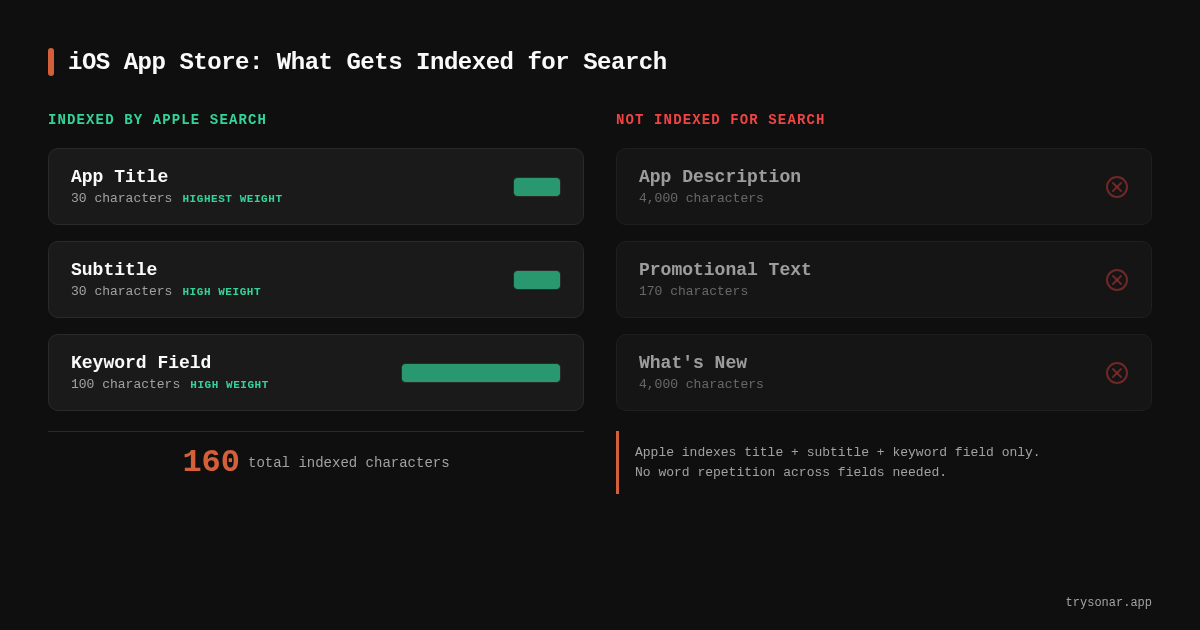
> TL;DR — Apple indexes every word in your 100-character keyword field and combines them with title/subtitle terms. To maximize coverage: use commas with no spaces, drop plurals, never repeat words already in your title or subtitle, and exploit the Spanish (Mexico) localization for an extra 100 characters on the U.S. storefront.
How the App Store Keyword Field Works
When you submit or update an app in App Store Connect, there's a dedicated "Keywords" text field under the localization section for each language. Apple describes it as a place to "include one or more keywords that describe your app" with a hard limit of 100 characters [source: developer.apple.com/help/app-store-connect/reference/app-store-connect-field-length-requirements/].
Here's what happens behind the scenes:
- Apple's indexer parses the field — it splits on commas and strips whitespace.
- Each term becomes a candidate keyword — Apple can index individual words and combine them with words from your title, subtitle, and developer name.
- Relevance scoring determines ranking — being indexed doesn't guarantee ranking. Apple also weighs download velocity, ratings, and engagement [source: developer.apple.com/app-store/search/].
The keyword field is invisible to users browsing your listing. It's purely a signal to Apple's search algorithm. That makes it different from your title and subtitle, which serve double duty as both ranking signals and user-facing copy.
Sonar's keyword index rates "app store keyword field" at difficulty 49 on iOS with an Apple popularity score of just 9 — a niche query where moderate ranking competition meets very low direct search interest. That pattern is typical of technical ASO queries: the people searching are practitioners, not casual users.
What Apple Still Indexes from the Keyword Field
Apple's indexing behavior has been consistent for several years, but misconceptions persist. Here's what the keyword field definitively contributes to your search index.
Individual Words
Every word you place in the keyword field gets indexed as a standalone term. Apple also combines these words with terms from your title and subtitle to form multi-word queries. For example, if your title contains "Budget" and your keyword field contains "tracker," Apple can index you for "budget tracker" — even though that exact phrase appears in neither location alone [source: developer.apple.com/app-store/search/].
Singular Forms Cover Plurals
Apple's algorithm automatically indexes the plural form of a singular noun. If you include "game" in your keyword field, you'll also be indexed for "games." This means you should always use the singular form and save characters. This behavior has been documented in Apple's App Store optimization guidelines and confirmed through years of practitioner testing [source: developer.apple.com/app-store/search/].
Terms Across All Localizations
You get a separate 100-character keyword field for each localization you support. Apple indexes all of them for users in the relevant storefront. For the U.S. store specifically, Apple indexes keywords from both English (U.S.) and Spanish (Mexico) localizations [source: developer.apple.com/help/app-store-connect/manage-app-information/localize-app-store-information/]. That effectively gives U.S. developers up to 200 characters of keyword space.
Competitor and Category Names (With Caveats)
Apple does index competitor names and category terms placed in the keyword field — but this comes with risk. Apple's guidelines explicitly state that "inappropriate use of ... competitor names" is grounds for rejection [source: developer.apple.com/app-store/review/guidelines/, section 2.3.7]. In practice, apps regularly include competitor terms in the keyword field without rejection, but Apple reserves the right to flag it. If you choose to include competitor names, the keyword field is the safest place for them since it's hidden from users. Use competitor keyword analysis to identify which rival brand terms are worth targeting.
What Apple Does NOT Index (or Ignores)
This is where most developers waste characters. The following elements in the hidden keyword metadata either get stripped or have no indexing value.
Spaces After Commas
Apple treats the keyword field as a comma-separated list and automatically trims whitespace. The string photo,editor,filter is identical to photo, editor, filter — but the second version wastes 2 characters on spaces. Over a 100-character field, sloppy spacing can cost you 10–15 characters, which translates to 1–3 missed keywords.
Duplicate Words Already in Title or Subtitle
If a word appears in your app title or subtitle, repeating it in the keyword field has no additional indexing benefit. Apple already indexes your title and subtitle terms. Duplicating "photo" in both your title and keyword field just burns characters. Before filling out your keyword field, list every unique word already in your title and subtitle, then exclude them.
The App Name / Developer Name
Your developer account name is also indexed by Apple's search engine. If your developer name is "Acme Software," you don't need to include "acme" or "software" in your keyword field — they're already indexed [source: developer.apple.com/app-store/search/].
Special Characters and Stop Words
Apple ignores most special characters in the keyword field, including &, @, #, and -. Common stop words like "the," "and," "a," and "or" are also stripped by the indexer and waste characters [source: developer.apple.com/app-store/search/]. The one exception: don't use hyphens to join words unless you specifically want to be indexed for the hyphenated form. "Note-taking" takes 11 characters; "note,taking" takes 11 characters and indexes both words individually.
Phrases and Multi-Word Strings
Putting a multi-word phrase in the keyword field doesn't create a "phrase match" lock. The string "photo editor" in the keyword field uses 12 characters but indexes exactly the same as "photo,editor" at 12 characters. However, photo,editor is clearer and prevents accidental whitespace waste. Apple combines individual words automatically — you don't need to spell out every combination.
The 100-Character Budget: A Practical Framework
Here's a systematic approach to filling every available character without wasting a single one.
Step 1: Audit Existing Indexed Terms
List every word already indexed from your title, subtitle, and developer name. These terms are "free" — no need to repeat them. For a thorough process, follow the metadata optimization guide to map out your full indexing footprint.
Step 2: Build Your Candidate List
Use keyword research to generate a list of relevant terms. Focus on:
- High-relevance terms your title and subtitle don't already cover
- Synonyms for your core features (e.g., "pic" alongside "photo")
- Adjacent category terms (e.g., "collage" for a photo editing app)
- Misspellings that users actually search (e.g., "calender" for calendar apps)
The broader term "aso keywords" sits at difficulty 15 on iOS with popularity 5 in Sonar's index, confirming that specific ASO how-to queries face minimal ranking resistance. When choosing between terms, lower difficulty means faster ranking — especially for newer or smaller apps.
Step 3: Prioritize by Search Volume and Difficulty
Not all keywords deserve space in a 100-character field. Rank candidates by the ratio of search popularity to ranking difficulty. A keyword with popularity 40 and difficulty 20 is more valuable per character than one with popularity 10 and difficulty 60.
| Priority | Popularity | Difficulty | Action |
|---|---|---|---|
| High | 30+ | Under 40 | Include in keyword field |
| Medium | 10–30 | Under 50 | Include if characters allow |
| Low | Under 10 | Over 50 | Skip or use in localization |
| Avoid | Any | Over 70 | Not worth the characters |
You can pull these exact metrics for any keyword using Sonar's keyword tool, which shows difficulty, popularity, and competitor rankings side by side.
Step 4: Format for Maximum Density
Apply these formatting rules to maximize your character budget:
- Separate with commas only — no spaces after commas
- Use singular forms — "game" not "games"
- Remove duplicates — cross-reference with title and subtitle
- Drop stop words — no "and," "the," "for," "a"
- No special characters — skip
&,#,@
A well-optimized keyword field looks like this:
tracker,budget,expense,money,spending,finance,planner,savings,bill,receipt,wallet,debt,incomeThat's 13 unique terms in 82 characters. An unoptimized version of the same terms with spaces and duplicates might fit only 8–9 terms.
Step 5: Use the Second Localization
For the U.S. App Store, add a Spanish (Mexico) localization even if your app isn't localized in Spanish. The keyword field for that localization is also indexed for U.S. searches [source: developer.apple.com/help/app-store-connect/manage-app-information/localize-app-store-information/]. Use this second 100-character field for overflow English keywords, long-tail terms, or Spanish translations that U.S. Hispanic users might search.
How Google Play Differs: No Hidden Keyword Field
Android developers searching for "app store keyword field" are often confused because Google Play has no equivalent. On Android, the same query jumps to difficulty 60 with popularity 35 in Sonar's data, reflecting the fact that Google Play has no equivalent hidden keyword field — Android developers search for this concept more because they're trying to understand the iOS-specific mechanic.
Google Play indexes keywords from visible metadata fields:
| Signal | iOS App Store | Google Play |
|---|---|---|
| Hidden keyword field | Yes (100 chars) | No equivalent |
| Title | Yes (30 chars) | Yes (30 chars) |
| Subtitle | Yes (30 chars) | N/A |
| Short description | N/A | Yes (80 chars) |
| Long description | Not indexed for search | Yes (~4,000 chars indexed) [source: support.google.com/googleplay/android-developer/answer/9898842] |
| Developer name | Yes | Yes |
Because Google Play lacks a hidden field, Android ASO relies more heavily on natural keyword placement in the long description. For a complete breakdown of Android-specific optimization, see the Android ASO guide.
Common Mistakes That Waste Keyword Field Characters
Even experienced developers make these errors. Each one silently reduces your indexing coverage.
Repeating Title Words
This is the single most common waste. If your title is "PhotoSnap - Best Photo Editor," the words "photo" and "editor" are already indexed. Putting them in the keyword field again does nothing except consume 11 characters.
Using Spaces Instead of Commas
The string photo editor filter crop wastes 3 characters on spaces compared to photo,editor,filter,crop. Over a full 100-character field, this adds up to 15–20 lost characters — enough for 2–3 additional keywords.
Including Plural Forms
"Photos,editors,filters" uses 7 more characters than "photo,editor,filter" with no indexing benefit. Apple automatically handles pluralization.
Stuffing Irrelevant Terms
Including trending but irrelevant keywords (e.g., "AI" for a simple calculator app) may temporarily boost impressions but will tank your conversion rate. Apple also uses relevance signals to determine rankings, so irrelevant terms tend to produce poor rank positions even if you get indexed. Track your conversion rate to catch this problem early.
How to Verify Your Keywords Are Indexed
After updating your keyword field, you need to confirm Apple actually indexed the terms. Here's how:
- Wait 24–48 hours — Apple's index typically updates within this window after a new build or metadata update goes live.
- Search manually — Open the App Store on a device (not the web) and search for each keyword. Check if your app appears in results.
- Use a rank tracker — Manual checks don't scale. A keyword rank tracking tool lets you monitor hundreds of keywords automatically and catch deindexing events.
- Check App Store Connect analytics — The Impressions data in App Store Connect Analytics can tell you which search terms drive views, but it only shows terms where you already get meaningful impressions.
If a keyword doesn't index within 48 hours, it may be too generic, flagged as inappropriate, or conflicting with a trademark. Remove it and try an alternative.
FAQ
How many characters is the App Store keyword field?
Apple allows a maximum of 100 characters per localization. This limit is enforced by App Store Connect — you physically cannot enter more than 100 characters. However, by using multiple localizations (such as English U.S. and Spanish Mexico for the U.S. storefront), you can effectively double your keyword capacity to 200 characters [source: developer.apple.com/help/app-store-connect/reference/app-store-connect-field-length-requirements/].
Should I separate keywords with commas or spaces?
Always use commas without trailing spaces. Apple treats the keyword field as a comma-delimited list. Using spaces instead of commas wastes characters. The format keyword1,keyword2,keyword3 is optimal. Apple's own guidelines recommend comma separation [source: developer.apple.com/app-store/search/].
Does Google Play have a keyword field like Apple's?
No. Google Play has no hidden keyword field. Instead, Google indexes keywords from visible metadata: the title (30 characters), short description (80 characters), and long description (approximately 4,000 characters) [source: support.google.com/googleplay/android-developer/answer/9898842]. This is a fundamental difference between iOS and Android ASO. For Android-specific strategies, check our Google Play ASO guide.
Can I use competitor names in the keyword field?
Technically, Apple will index competitor names placed in the keyword field. However, Apple's App Store Review Guidelines section 2.3.7 prohibits "inappropriate use of ... competitor names" and apps can be rejected or have keywords removed for this practice [source: developer.apple.com/app-store/review/guidelines/]. The keyword field is the lowest-risk place for competitor terms since users never see it, but you should be aware that Apple can and does enforce this rule selectively.
How often should I update the keyword field?
Review your keyword field with every app update, or at minimum quarterly. Search trends shift, new competitors enter your category, and Apple periodically adjusts its indexing behavior. Each app update gives you an opportunity to swap underperforming keywords for new candidates. Use keyword research to identify emerging terms before your competitors do.
Want to see difficulty scores, popularity data, and competitor keywords for every term in your field? Try Sonar free — it shows real-time search volume, difficulty, and ranking data so you can fill all 100 characters with keywords that actually move the needle.