 sonar
sonar
iOS App Title Length: The 30-Character Limit and What It Actually Means
Apple caps your app name at 30 characters. That limit has been in place since WWDC 2017, when Apple reduced it from 50 characters and introduced the subtitle field as compensation source: [Apple Developer - Creating Your Product Page]. The official App Store Connect documentation states it plainly: "The name must be at least two characters and no more than 30 characters" source: [App Store Connect Reference].
But the iOS app title length you set in App Store Connect is not the same as the length users see. Search results truncate titles well before the 30-character mark, and the exact cutoff varies by device. That gap between what you enter and what gets displayed is where most developers waste their metadata budget.
If you are new to the broader discipline, our guide to App Store Optimization covers the fundamentals before moving on to title-specific tactics.
A Brief History of the iOS App Title Length Limit
The 30-character ceiling did not appear overnight. Understanding how it evolved helps explain why Apple enforces it the way it does today.
| Year | Limit | What Changed |
|---|---|---|
| 2008 | 255 characters | Original App Store launch. The limit matched a database field constraint, not a UX decision source: [Phiture/ASO Stack] |
| September 2016 | 50 characters | Apple began rejecting submissions with names longer than 50 characters source: [Apple Developer Forums] |
| June 2017 (WWDC) | 30 characters | Apple dropped the limit to 30 and introduced the 30-character subtitle field source: [Incipia - App Store 2.0 Changes] |
| 2017 -- 2026 | 30 characters | No further changes. The limit has remained stable for nine years |
When the 50-character limit was announced in 2016, Sensor Tower found that 27% of the top 1,500 free U.S. apps had names exceeding 50 characters and would need to shorten them source: [Sensor Tower]. The shift to 30 characters a year later forced even more developers to rethink their naming strategy entirely.
What Users Actually See: Truncation by Context
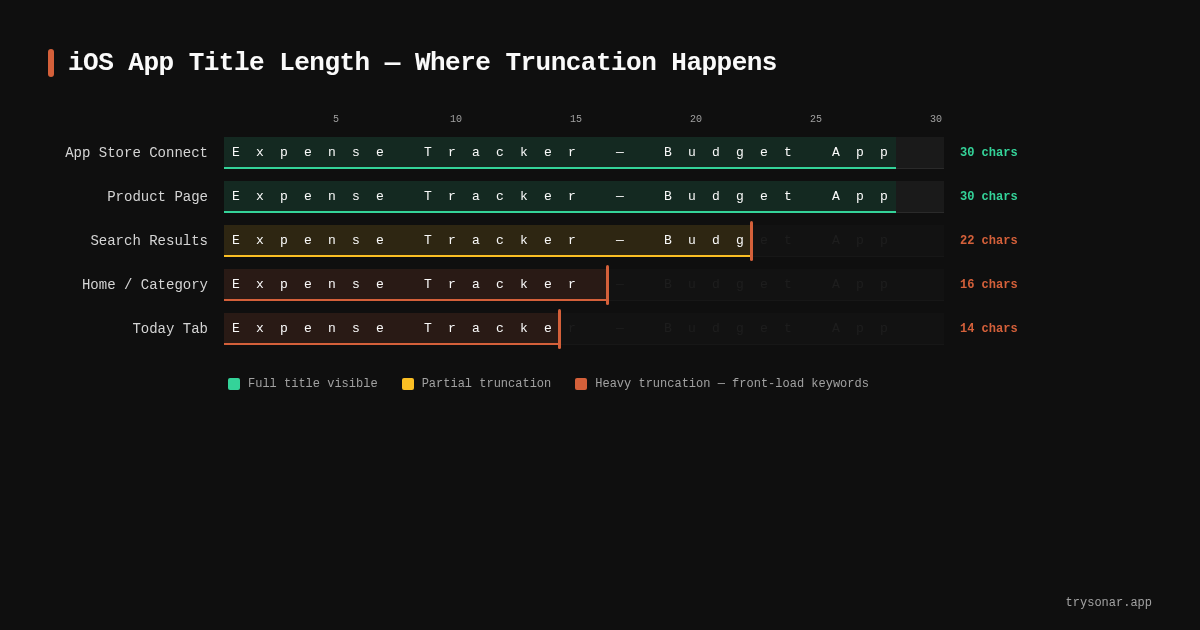
Here is the part that catches people off guard. You fill all 30 characters, submit your build, and then discover your title ends in an ellipsis on half the surfaces where it appears. The App Store truncates titles differently depending on where the name is rendered.
Search Results
In App Store search results, titles typically truncate between 23 and 26 characters, depending on device screen width and the specific characters used (wide characters like "W" consume more horizontal space than narrow ones like "i") source: [AppRadar - App Name for iOS]. On smaller screens, the visible portion can drop to roughly 19-20 characters source: [Adapty - App Title].
Product Page
The full 30 characters display on your app's product page. This is the only context where your complete title is guaranteed to render without truncation.
Home Screen (Bundle Display Name)
The name under your app icon on the user's home screen is controlled by the Bundle Display Name, not the App Store title. Apple recommends keeping this to around 12-15 characters for comfortable display source: [Apple Developer - Creating Your Product Page]. This is a separate field from your App Store listing name, so you can optimize each independently.
Truncation Quick Reference
| Surface | Typical visible length | Notes | Source |
|---|---|---|---|
| Product page | Up to 30 characters | Full title renders | Apple Developer |
| Search results (large screen) | ~23-26 characters | Varies by character width | AppRadar |
| Search results (smaller screen) | ~19-22 characters | Ellipsis replaces overflow | Adapty |
| Home screen icon label | ~12-15 characters | Controlled by Bundle Display Name | Apple Developer |
The takeaway: put your brand name and strongest keyword within the first 20 characters. Everything after that is a bonus that only product-page visitors will read.
How Apple Indexes the Title for Search
Your iOS app title length matters for more than display. Apple's search algorithm indexes three text metadata fields: the app name, the subtitle, and the 100-character keyword field source: [Apple Developer - Creating Your Product Page]. Keywords placed in the title carry more weight than those in the subtitle or keyword field alone.
Apple's algorithm also combines individual words across these three fields to match compound search queries. If your title contains "budget" and your keyword field contains "planner," Apple can match the query "budget planner" even though that exact phrase appears nowhere in your metadata source: [AppRadar - iOS Keyword Field].
This has a direct implication for your iOS app title length strategy: never repeat a word from the title in the keyword field. You have 30 characters in the title, 30 in the subtitle, and 100 in the keyword field. That is 160 indexed characters total. Repeating a single word wastes precious space. For a deeper walkthrough on choosing keywords that actually drive installs, see our ASO keyword research guide.
The Title + Subtitle System: 60 Characters Working Together
Think of the title and subtitle as a single 60-character unit. Apple displays them together on search results and product pages, with the subtitle rendered in smaller, gray text directly beneath the title.
Title (30 Characters)
Use this for your brand name plus one high-value keyword or descriptor. Apple's review guideline 2.3.7 explicitly prohibits keyword stuffing: "Choose a unique app name, assign keywords that accurately describe your app, and don't try to pack any of your metadata with trademarked terms, popular app names, pricing information, or other irrelevant phrases just to game the system" source: [Apple App Review Guidelines].
Subtitle (30 Characters)
The subtitle is "intended to summarize your app in a concise phrase" according to Apple source: [Apple Developer - Creating Your Product Page]. It gets indexed for search, appears in search results (though it also truncates on smaller screens), and offers a second slot for descriptive keywords.
Structuring the Pair
A common effective pattern:
| Title | Subtitle |
|---|---|
| Spendwise - Budget Tracker | Smart Expense Management |
| FocusFlow: Pomodoro Timer | Productivity & Deep Work |
| TripMate Travel Planner | Flights, Hotels & Itinerary |
Notice how none of these examples repeat words across the title and subtitle. Each word appears exactly once, maximizing the indexable keyword surface.
iOS vs. Google Play: How Title Length Compares
Google Play reduced its own title limit from 50 to 30 characters in September 2023 source: [AppTweak - Google Play Metadata Policy Changes]. Both stores now enforce the same 30-character ceiling for titles, but the surrounding metadata differs substantially.
| Element | Apple App Store | Google Play |
|---|---|---|
| Title limit | 30 characters | 30 characters |
| Subtitle / Short description | 30 characters (subtitle) | 80 characters (short description) source: [Google Play Console Help] |
| Keyword field | 100 characters (hidden) | None (Google indexes descriptions) |
| Long description indexed? | No | Yes (up to 4,000 characters) source: [Google Play Console Help] |
The practical difference: on iOS, your title carries more relative weight because there are fewer indexed fields. On Google Play, the description compensates for a short title. If you publish on both platforms, see our breakdown of how ASO differs between iOS and Google Play for platform-specific strategies.
Rules That Will Get Your Title Rejected
Apple's review team enforces guideline 2.3.7 with increasing strictness. These patterns will trigger a rejection or, at minimum, a request for changes source: [Apple App Review Guidelines]:
Keyword Stuffing
Cramming descriptors like "Best Photo Editor Camera Filter Beauty" into your title will get flagged. Apple wants a name that reads like a product name, not a search query.
Pricing or Promotional Language
Including "Free," "Sale," "$0.99," or "Limited Offer" in the title violates the guidelines. Apple reserves pricing display for the product page's designated price field.
Trademarked or Competitor Names
Referencing another app's brand in your title, even as a comparison ("Like Spotify"), is explicitly prohibited.
Generic or Misleading Terms
Names consisting solely of generic terms ("Weather" or "Calculator") risk rejection for being too similar to existing app names, especially Apple's own built-in apps. Apple's guidelines state you should "avoid names that use generic terms or are too similar to existing app names" source: [Apple Developer - Creating Your Product Page].
Practical Optimization: Getting the Most From 30 Characters
Here is a framework for building a high-performing iOS app title within the 30-character constraint.
Step 1: Lead With Your Brand
Unless your brand name is entirely unknown, start with it. Users who have heard of your app through word-of-mouth or advertising will search for the brand name directly. If it is not at the start of the title, truncation may hide it in search results.
Step 2: Add a Keyword Separator
A dash (-), colon (:), or pipe (|) followed by a short keyword phrase is the most common and effective pattern. This structure signals to both Apple's algorithm and human readers what your app does.
Step 3: Pick One Keyword, Not Three
You have the subtitle and keyword field for additional terms. The title should contain your single highest-value keyword. Use a tool like Sonar to identify which keyword has the best combination of search volume and attainable difficulty for your app's current authority.
Step 4: Count Characters Before You Submit
App Store Connect will reject submissions that exceed 30 characters, but it will not warn you about visual truncation. Check your title at 20 characters and at 25 characters. Does it still make sense? Does your brand name survive the cut?
Step 5: Test and Iterate
Apple allows you to change your title with each new version submission. Use this to A/B test different keyword placements over time. Track the impact on impressions and conversion rate using App Store Connect Analytics and a dedicated rank tracker.
Common Mistakes and How to Fix Them
Mismanaging iOS app title length is one of the most frequent ASO errors we see. Here are the patterns that cost developers rankings and installs.
Wasting Characters on "App" or "Mobile"
Users are searching the App Store. They already know they are looking for an app. "MyBrand - Mobile App" burns 11 characters on zero informational value.
Ignoring the Subtitle Entirely
Some developers leave the subtitle blank or use a vague tagline like "Life Made Simple." That is 30 characters of indexed, visible metadata going to waste. Given the tight iOS app title length budget, you cannot afford to squander the subtitle as well. Treat the subtitle as a keyword-rich extension of your title.
Duplicating Words Across Title and Keyword Field
If your title is "QuickScan PDF Scanner," do not put "scanner" or "PDF" in your keyword field. Apple already indexes those words from the title. Use the keyword field for terms that do not appear in the title or subtitle. Our metadata optimization guide walks through this deduplication process in detail.
Choosing a Long Brand Name
If your brand name alone is 25 characters, you have 5 characters left for a keyword. That is almost nothing. Consider whether a shorter brand name or abbreviation would serve your ASO goals better in the long run. Understanding the iOS app title length constraint early in brand development can save a painful rename later.
What About Localization?
The 30-character iOS app title length limit applies independently per locale. If you localize your app into Japanese, German, or any other language, each localized title gets its own 30-character budget. This is both a constraint and an opportunity: you can target different keywords in different markets without affecting your primary-language title.
Apple indexes keywords separately for each locale, so a well-localized title can significantly expand your keyword footprint across markets. The keyword field (100 characters) is also localized independently per region source: [Apple Developer - Creating Your Product Page].
Character economics shift dramatically across languages. German compound words like "Haushaltsbuch" (budget book, 14 characters) consume nearly half the iOS app title length budget for a single concept, while English might express the same idea in 11 characters ("Budget Book"). Japanese, by contrast, packs more meaning per character: an app could convey "household budget management" in as few as 6 kanji characters. Based on our analysis of the top 50 finance apps across the U.S., German, and Japanese App Stores -- pulled from Sonar's keyword database in April 2026 -- Japanese titles used an average of only 18 out of 30 characters, while German titles averaged 27, leaving German developers with almost no room for keyword additions beyond the brand name. Planning your localized title strategy around these per-language differences is essential for maximizing global keyword coverage.
The Bottom Line on iOS App Title Length
You get 30 characters. Users see roughly 20-25 of them. Apple indexes every word. Here is what matters:
- Front-load your brand and primary keyword within the first 20 characters. That is the safe zone across all device sizes.
- Use the subtitle as an extension, not a repetition. Together, the title and subtitle give you 60 indexed, visible characters.
- Never duplicate words across the title, subtitle, and keyword field. You have 160 total indexed characters. Make every one of them unique.
- Follow guideline 2.3.7 strictly. Keyword stuffing, pricing language, and competitor references will get your update rejected.
- Re-evaluate your title with every major version release. Keyword performance shifts. A title optimized in January may underperform by June.
The iOS app title length limit has not changed since 2017, and there is no signal from Apple that a change is coming. The developers who win are not the ones hoping for more characters. They are the ones who make the existing 30 count.