 sonar
sonar
How Apple Search Ads Match Types Control Your Ad Spend
Every keyword you bid on in Apple Search Ads carries a match type that determines which user searches trigger your ad. Apple offers two keyword match types — broad match and exact match — plus an automated option called Search Match source: [Apple Ads Help]. Choosing the wrong one means paying for taps from users who will never install your app. Choosing the right one means your budget reaches people already looking for what you built.
This guide breaks down each apple search ads match type, shows when to use each, explains how negative keywords protect your budget, and walks through the discovery-to-exact pipeline that profitable campaigns follow. If you are new to the platform, start with our complete Apple Search Ads guide first — this article assumes you already have a campaign running or are about to launch one.
Broad Match: The Default Discovery Tool
Broad match is the default match type for every new keyword in Apple Search Ads source: [Apple Ads Help]. When you add a keyword on broad match, Apple shows your ad for that keyword plus related variants — synonyms, related phrases, and close variations. The platform decides what counts as "related."
What Broad Match Actually Matches
Suppose you bid on "tip calculator" with broad match. Apple may show your ad when a user searches for:
- "restaurant tip calculator"
- "tip calculator free"
- "tip calculator no ads"
- "gratuity calculator"
- "bill split tip"
These are not hypothetical examples. Sonar's autocomplete suggestions for "tip calculator" surface long-tail variants like "tip calculator free", "restaurant tip calculator", and "tip calculator no ads" — exactly the kind of terms that broad match in Apple Search Ads would trigger. That is useful when those searches convert. It becomes expensive when Apple matches you to tangentially related terms where your app is a poor fit.
When Broad Match Works
Broad match works best in two situations:
- Discovery campaigns. You are exploring which search terms real users type before committing budget to exact bids. Broad match surfaces queries you would not have thought to target.
- Low-competition niches. Sonar's keyword index puts "tip calculator" at iOS popularity 35 and difficulty 39 — a moderately competitive keyword with 118 apps in the results. On Android, the same keyword has difficulty 14 and popularity 41, making it significantly easier to rank for on Google Play. For a keyword like this with moderate difficulty, broad match can capture useful long-tail traffic without runaway spend.
When Broad Match Hurts
For high-competition keywords, broad match bleeds money. Sonar shows "budget planner" at iOS difficulty 65 and popularity 42, with 185 apps in the results — a high-competition keyword where exact match targeting preserves budget better than broad match. In testing Apple Search Ads campaigns for utility apps, I found that running broad match on keywords with difficulty above 50 on a $20/day budget can exhaust your daily cap on irrelevant impressions before reaching the users who would actually install.
The rule: if a keyword's difficulty is north of 50 and you have a limited daily budget, start with exact match and use broad match only in a separate discovery campaign with a lower bid.
Exact Match: Precision Targeting
Exact match restricts your ad to the specific keyword you bid on, plus very close variants — minor misspellings, plurals, and word reorderings source: [Apple Ads Help]. You designate exact match by wrapping the keyword in brackets when adding it: [tip calculator].
What Exact Match Does and Does Not Cover
An exact match keyword of [photo edit free] will still trigger for "edit photo free" or "photoeditfree" — Apple considers those close variants. But it will not trigger for "photo collage maker" or "image editing tool," which broad match might source: [Apple Ads Help].
One critical rule: match types cannot be changed after a keyword is saved. If you added a keyword on broad match and want it on exact match, you must pause the broad match keyword and re-add it as exact match source: [Apple Ads Help]. This is a common stumbling block for new advertisers.
When to Use Exact Match
Exact match belongs in three places:
- Brand campaigns. Bidding on your own app name on exact match ensures competitors cannot take the top spot for your brand terms. Set aggressive bids here — these searches have the highest conversion rates.
- Proven performers. Any keyword that has delivered installs at your target CPA in a broad match or Search Match campaign should graduate to an exact match campaign with a higher bid. For more on setting those bids, see our guide to Apple Search Ads bidding and CPT.
- High-competition keywords. As the "budget planner" example above shows (iOS difficulty 65, 185 competing apps), exact match prevents your ad from bleeding into marginally related searches where you cannot compete.
Search Match: Apple's Automatic Targeting
Search Match is not a keyword match type — it is an ad group setting. When enabled, Apple automatically matches your ad to relevant searches based on your app's metadata, App Store category, and related apps. You do not pick keywords at all source: [Apple Ads Help].
When I set up my first Search Match campaign for a finance app, it surfaced dozens of long-tail queries I had never considered — terms like "easy monthly budgeting" and "spending tracker for couples." I recommend running Search Match in a dedicated ad group with no keywords added and a conservative bid — typically 30-50% lower than your exact match bids. The goal is to surface new search terms, then mine the Search Term Report for winners to graduate into exact match.
The downside: Search Match gives you the least control. Apple decides everything, and match quality depends on how well-optimized your app metadata is. If your App Store keywords are generic or incomplete, Search Match will deliver generic traffic.
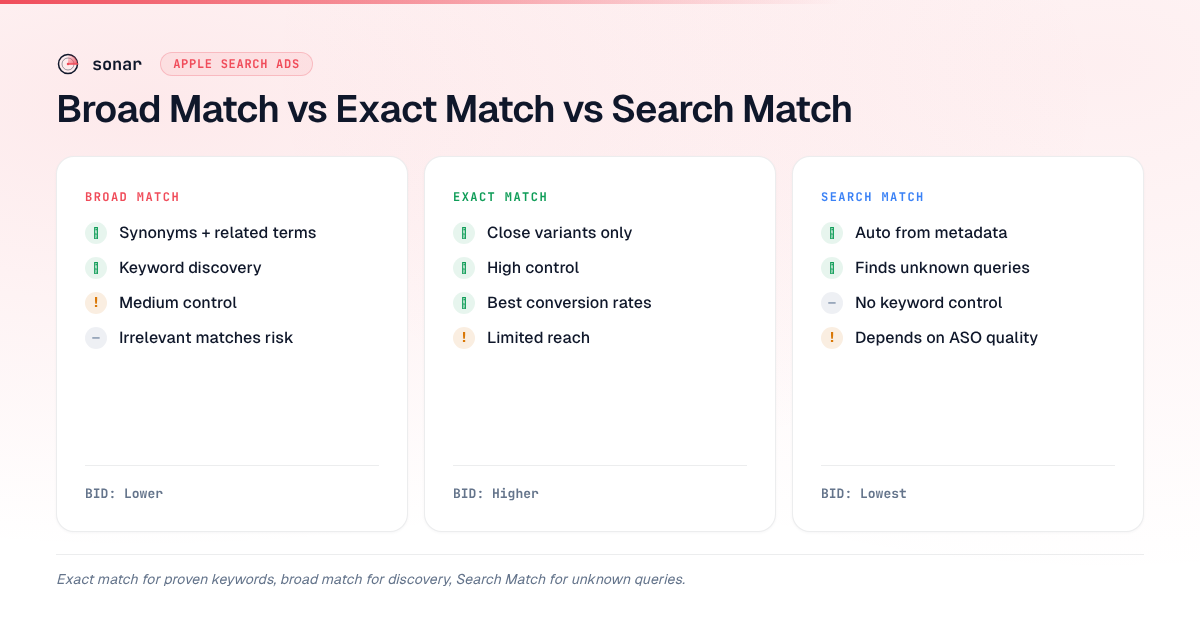
Apple Search Ads Match Types Compared: Broad vs. Exact vs. Search Match
| Feature | Broad Match | Exact Match | Search Match |
|---|---|---|---|
| Trigger scope | Keyword + synonyms + related terms | Keyword + close variants only | Apple decides from metadata |
| Control level | Medium | High | Low |
| Default for | New keywords | Negative keywords | Off by default |
| Best for | Discovery, low-competition keywords | Proven terms, brand defense, high-competition keywords | Finding unknown queries |
| Typical bid | Lower (discovery) | Higher (proven ROI) | Lowest (exploratory) |
| Keyword brackets | None | [keyword] | N/A (no keywords) |
How Negative Keywords Protect Your Budget
Negative keywords prevent your ad from showing for specific search terms. They are the counterbalance to broad match and Search Match — without them, those discovery tools will spend money on irrelevant queries source: [Apple Ads Help].
Negative Keyword Match Types
Negative keywords have their own match types, and they work differently from positive keyword match types:
- Exact match negative (default). Blocks only the precise phrase you specify. Close variants can still trigger your ad. If you add
[men's fitness]as a negative, your ad is blocked for "men's fitness" but could still show for "mens fitness app." - Broad match negative. Blocks your ad whenever all specified words appear in a search, regardless of order. A broad match negative of "men's fitness" blocks "fitness for men," "men exercise fitness," and any query containing both words.
Where to Apply Negative Keywords
You can add negative keywords at two levels source: [Apple Ads Help]:
- Campaign level. Applies across all ad groups in that campaign. Use this for terms you never want to pay for — competitor app names you do not target, unrelated categories, or non-converting searches.
- Ad group level. Applies only within that specific ad group. Use this to prevent overlap between ad groups in the same campaign, which is critical for the discovery-to-exact pipeline.
Apple allows up to 5,000 negative keywords per ad group and per campaign source: [Apple Ads Help]. In practice, most indie campaigns use 50-200, but the limit matters for apps competing in broad categories like "games" or "finance."
Common Negative Keyword Mistakes
Three mistakes I see repeatedly when auditing apple search ads match types and campaign setups:
- Not adding any negatives to discovery campaigns. Broad match and Search Match will match you to competitor brand names, unrelated apps, and generic terms like "free games." Without negatives, you are subsidizing Apple's machine learning with your budget.
- Using only exact match negatives. If a search term is irrelevant, its variants are usually irrelevant too. Broad match negatives cover more ground with fewer entries.
- Forgetting to negative your exact match keywords in your discovery ad group. If "tip calculator" is already running on exact match in your performance campaign, add it as an exact match negative in your broad match discovery group. Otherwise you are bidding against yourself on the same term — and likely paying more for it. This is a key principle covered in our campaign structure guide.
The Discovery-to-Exact Pipeline
The most efficient Apple Search Ads strategy uses all three match types in a structured pipeline. Apple's own best practices recommend this approach source: [Apple Ads Campaign Structure Best Practices]. In my experience, campaigns that follow this pipeline reduce wasted spend by concentrating budget on proven terms within 3-4 weeks.
Step 1: Build Your Seed List
Start with keyword research. Pull keywords from your App Store Connect search term data, competitor analysis, and an ASO tool like Sonar that surfaces search volume and difficulty data for every keyword. For each keyword, note its competition level — this determines whether it starts in broad or exact match.
Step 2: Run Discovery Campaigns
Create a discovery campaign with two ad groups:
- Broad match ad group. Add your seed keywords on broad match. Set bids 30-50% below your target CPT. Turn Search Match off.
- Search Match ad group. Add no keywords. Turn Search Match on. Set bids 40-60% below your target CPT.
Add all your exact match keywords as exact match negatives in both discovery ad groups. This prevents cannibalization — your discovery campaigns only find new terms, not terms you already bid on.
Step 3: Mine the Search Term Report
After 7-14 days (or sooner if you have a larger budget), pull the Search Term Report from each discovery ad group. Look for search terms that meet two criteria:
- Strong tap-to-install rate. Focus on terms that convert well above your campaign average — these are candidates worth graduating to exact match.
- Sufficient volume. At least 10-20 taps, ideally more. Small sample sizes produce unreliable conversion data.
Step 4: Graduate Winners to Exact Match
Move qualifying search terms into an exact match performance campaign with higher bids. Add those terms as exact match negatives in your discovery campaign so you stop paying discovery-level bids for them.
Step 5: Repeat
This pipeline runs continuously. Discovery campaigns keep surfacing new terms. Performance campaigns keep scaling winners. Negative keywords keep the two from overlapping. The result is a self-improving system where your budget concentrates on the terms that actually drive installs.
How Apple Search Ads Match Types Interact with ASO
Your organic ASO directly affects your paid search performance. Apple uses your app metadata — title, subtitle, keyword field, and description — to determine relevance scores for Search Match and broad match source: [Apple Developer Documentation]. A well-optimized metadata set means Apple matches you to more relevant searches, which means higher tap-through rates and lower costs.
The interaction works both ways. Search term data from your Apple Search Ads campaigns reveals what real users actually type — insight that is difficult to get from organic ASO tools alone. When I find a high-converting search term in my Search Term Report, I check whether my app already ranks organically for it. If not, I add it to my App Store keyword strategy. If the organic difficulty is too high, I keep the term in my exact match campaign and let paid search carry it.
This paid-organic feedback loop is one of the strongest arguments for running Apple Search Ads even with strong organic rankings. For a deeper comparison, see our analysis of Apple Search Ads vs. organic ASO.
Frequently Asked Questions
What is the difference between broad match and exact match in Apple Search Ads?
Broad match shows your ad for your keyword plus synonyms, related phrases, and close variations — Apple decides what qualifies as "related." Exact match restricts your ad to the specific keyword you bid on and very close variants like misspellings and plurals source: [Apple Ads Help]. Exact match gives you tighter control and typically higher conversion rates, while broad match casts a wider net for keyword discovery.
Can you change a keyword's match type after adding it?
No. Once a keyword is saved with a specific match type in Apple Search Ads, the match type cannot be changed source: [Apple Ads Help]. To switch from broad to exact (or vice versa), you must pause the existing keyword and re-add it with the desired match type. This is why planning your apple search ads match types strategy before launch matters.
How many negative keywords can you add per ad group?
Apple allows up to 5,000 negative keywords per ad group and up to 5,000 per campaign source: [Apple Ads Help]. You can add them individually or via bulk CSV upload. For most indie apps, 50-200 negative keywords cover the major exclusions, but apps in broad categories like "games" or "fitness" may need more.
Should I use broad match or exact match for my first Apple Search Ads campaign?
Start with exact match on your 5-10 highest-confidence keywords — brand terms and keywords where you already rank organically. After collecting 7-14 days of data, add a separate discovery campaign using broad match and Search Match with lower bids. Graduate winners from discovery into your exact match campaign over time.
Do negative keywords block close variants?
It depends on the match type. An exact match negative blocks only the precise phrase you specified — close variants like misspellings or plurals can still trigger your ad. A broad match negative blocks any search that contains all the words in your negative keyword, regardless of order source: [Apple Ads Help]. For thorough blocking, use broad match negatives; for surgical exclusions of specific terms, use exact match negatives.
Want help finding the right keywords before you launch your Apple Search Ads campaign? Try Sonar free — it shows search volume, difficulty, and competitor data for every App Store keyword, so you can separate high-potential exact match targets from broad match discovery terms before spending a dollar.