ASO Android Tools and Workflow: What Works on Google Play in 2026
Google Play indexes all 4,000 characters of your long description for keyword ranking — Apple indexes zero words from its equivalent field (source: Google Play Console Help). That single difference means the ASO Android workflow requires different tools, different keyword volumes, and different optimization tactics than iOS. Yet most ASO platforms treat Android as a secondary store, bolting on Play Store data as an afterthought — or ignoring it entirely (Astro, for example, is iOS-only).
This article walks through the tools and step-by-step workflow I use for ASO on Android, with real keyword data showing why Google Play deserves its own strategy.
Why ASO Android Requires Separate Tooling
The structural differences between Google Play and the App Store go beyond description indexing. Google Play uses a fundamentally different ranking algorithm that weights factors iOS does not have — including retention rate, crash-free sessions, and Android vitals (source: Google Play Console documentation).
Key differences that affect your tool choice:
| Factor | Google Play | Apple App Store |
|---|---|---|
| Long description indexing | All 4,000 characters indexed | Not indexed for search |
| Short description | 80 characters, indexed | Subtitle: 30 characters, indexed |
| Keyword field | None (keywords extracted from listing text) | 100-character hidden keyword field |
| A/B testing | Native listing experiments in Play Console | Product page optimization (limited) |
| Category tags | Up to 8 app tags (auto + manual) | Primary + secondary category only |
Source: Google Play Console Help; Apple App Store Connect Help.
Because Google Play extracts keywords from natural text rather than a hidden field, your ASO Android tool needs to analyze keyword placement across title, short description, and the full long description — not just count characters in a keyword slot.
The Android Difficulty Gap: Why It Matters for Tool Selection
Sonar's keyword index puts "tip calculator" at iOS difficulty 42 vs Android difficulty 22 — a 48% gap that shows how much easier Android keywords can be to rank for in the same category (source: Sonar /api/v1/keywords/search, queried 2026-07-04).
This pattern holds across categories. For "budget planner," Sonar shows iOS difficulty 66 with 191 competing apps vs Android difficulty 58 with only 30 competing apps — fewer results means less crowding on Google Play (source: Sonar /api/v1/keywords/search, queried 2026-07-04). The keyword "habit tracker" hits iOS difficulty 67 (popularity 58) on iOS and difficulty 61 (popularity 51) on Android, with 190 iOS results vs just 30 on Android — showing the structural competition gap between stores (source: Sonar /api/v1/keywords/search, queried 2026-07-04).
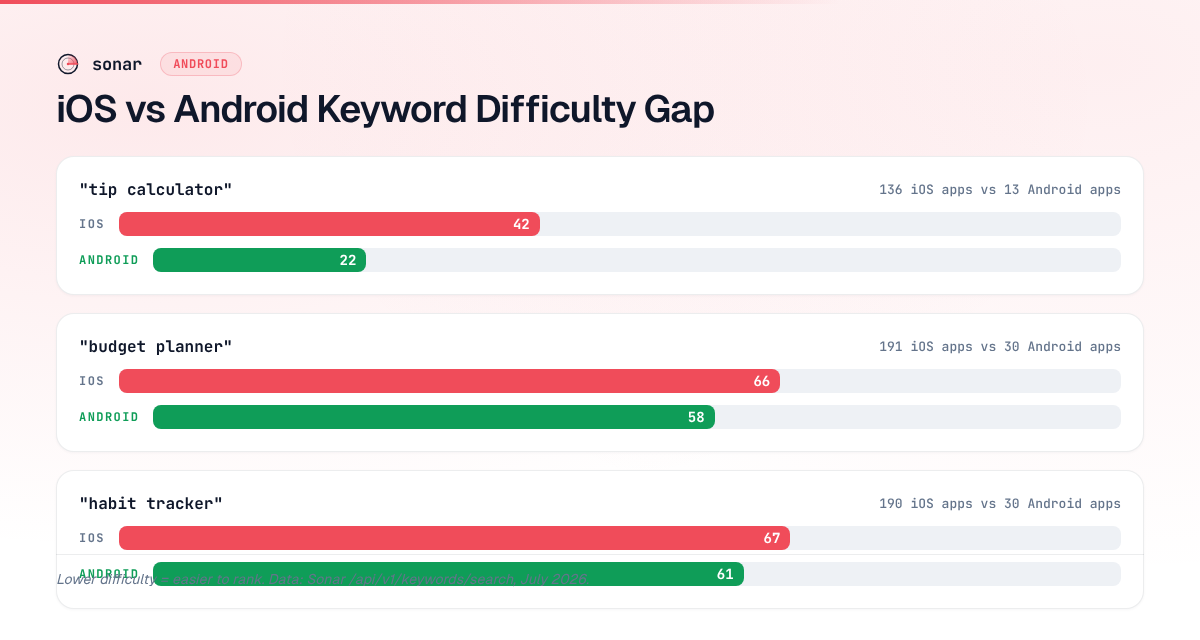
The implication for tooling: an ASO tool that only shows you one difficulty number without distinguishing stores is hiding the real opportunity. When I evaluate tools for ASO Android work, the first filter is whether they separate iOS and Android data completely — including difficulty scores, search volume, and competitor counts.
Essential Tools for an ASO Android Workflow
Not every ASO tool handles Android well. Here is what a complete workflow requires and which tools deliver it.
1. Keyword Research With Android-Specific Data
Your keyword tool must show Android difficulty, Android search volume (or popularity), and the actual number of competing apps on Google Play — separately from iOS. Sonar provides this through its cross-platform keyword API, which returns store-specific difficulty, popularity, and result counts for any keyword (try it free).
When I research keywords for an Android app, I start with Play Store autocomplete suggestions. These represent real user queries on Google Play. For example, querying "budget planner" on Android returns suggestions like "budget planner free app," "budget planner money tracker," and "budget planner loan tracker" (source: Sonar /api/v1/suggestions, queried 2026-07-04) — each a viable keyword target.
For a deeper explanation of how to evaluate these keywords, see the complete keyword research guide.
2. Play Console Search Analytics
Google's own Play Console provides search analytics data — impressions, conversion rates, and store listing visitors broken down by search term. No third-party tool replicates this first-party data. Use it to validate which keywords actually drive installs, not just rankings (source: Play Console Help).
I covered how to interpret this data in detail in Play Console Search Analytics: Read the Data.
3. Listing Experiment Tools
Google Play's native A/B testing (listing experiments) lets you test listing changes against live traffic and measure install-rate impact with statistical significance. This is a ranking input on Google Play — Google has confirmed that conversion rate influences search ranking (source: Google Play Academy).
What to test with experiments:
- Title keyword variations (does "budget planner" convert better than "expense tracker"?)
- Short description phrasing
- Icon and screenshot creative
- Feature graphic variants
For a full testing protocol, see Play Store Listing Experiments: What to Test.
4. Long Description Optimization
Because Google Play indexes the full 4,000-character description, you need a tool that analyzes keyword density and placement across the entire text — not just the title. The best approach uses a target keyword list (from step 1) and checks coverage across your description, flagging missing terms and over-repetition.
I wrote a dedicated guide on Google Play long description keyword structure that covers the exact placement rules.
5. Competitor Intelligence
On Android, the competitive landscape is often thinner. The "budget planner" search on Google Play shows only 30 results (source: Sonar /api/v1/keywords/search, queried 2026-07-04), compared to 191 on iOS. That means you can realistically audit every competing app in your keyword niche — studying their titles, descriptions, and tag choices.
The top-ranking Android apps for "budget planner" include MyMoney (4.8 stars, 2.5M+ installs), Wallet by BudgetBakers (4.6 stars, 12.9M+ installs), and Rocket Money (4.5 stars, 14.1M+ installs) — all using "budget" prominently in their title and subtitle (source: Sonar /api/v1/apps/search, queried 2026-07-04).
The 6-Step ASO Android Workflow
Here is the workflow I follow for every Android app optimization cycle, using the tools described above.
Step 1: Mine Play Store Autocomplete
Pull autocomplete suggestions for your core keywords on Android. These are real user queries with confirmed volume. Build a list of 20–50 candidate keywords from suggestions and competitor title/description analysis.
Step 2: Score Keywords by Android Difficulty
Run every candidate through a keyword tool that returns Android-specific difficulty. Filter for keywords where Android difficulty is meaningfully lower than iOS — these represent under-exploited opportunities. A keyword like "tip calculator" at Android difficulty 22 vs iOS difficulty 42 represents exactly this kind of gap (source: Sonar /api/v1/keywords/search, queried 2026-07-04).
Step 3: Map Keywords to Listing Fields
Distribute your chosen keywords across the listing structure:
| Field | Capacity | Priority |
|---|---|---|
| Title | 30 characters | Highest-weight keywords |
| Short description | 80 characters | Secondary keywords, CTA |
| Long description | 4,000 characters | Full keyword coverage, natural density |
| App tags | Up to 8 tags | Category-level terms |
For tag selection strategy, see Play Store App Tags: How to Choose Them.
Step 4: Write the Listing
Write title and short description first — these carry the most ranking weight per character. Then write the long description with target keywords distributed naturally across all 4,000 characters. Avoid stuffing; Google's algorithm penalizes unnatural repetition (source: Google Play Developer Policy).
Step 5: Run Listing Experiments
Before a full keyword change, set up an A/B test using Play Console's listing experiments. Test your new title or description variant against the current version. Wait for statistical significance (typically 7–14 days with sufficient traffic). Measure install-rate impact, not just ranking position.
Step 6: Monitor and Iterate With Search Analytics
After changes go live, monitor Play Console search analytics weekly. Track:
- Impressions for target keywords (are you appearing?)
- Conversion rate per keyword (are searchers installing?)
- Ranking trends over 30-day windows
Repeat from Step 1 quarterly or when competition shifts.
Tools That Fall Short on Android
Several popular ASO tools have significant Android gaps. Astro (by Phiture) is built exclusively for iOS — it cannot analyze Google Play at all (source: Astro website). I covered alternatives in Best Astro Alternatives for ASO.
Other tools technically support Android but lag behind their iOS features: incomplete keyword databases, no autocomplete data, or missing difficulty scores for Play Store. When evaluating any ASO tool for Android work, check these specifics:
- Does it return Android difficulty as a separate metric (not just iOS difficulty applied generically)?
- Does it pull Play Store autocomplete suggestions?
- Can it analyze all 4,000 long description characters for keyword coverage?
- Does it surface Play Store-specific ranking factors like Android vitals and retention?
If the answer to any of these is no, the tool treats Android as an afterthought.
How Android ASO Differs From iOS: A Quick Comparison
For developers shipping on both platforms, the workflow differences are substantial. I wrote a full breakdown in iOS vs Google Play: How ASO Differs, but the tool-relevant highlights are:
| Workflow step | iOS approach | Android approach |
|---|---|---|
| Keyword targeting | 100-char keyword field + title + subtitle | Title + short desc + 4,000-char long desc |
| Volume signals | Apple Search Ads popularity score (5–100) | Play autocomplete + Play Console impressions |
| A/B testing | Product page optimization (3 variants) | Listing experiments (unlimited variants) |
| Competition analysis | 191 results for "budget planner" | 30 results for "budget planner" |
| Difficulty gap | Higher across most categories | Lower — 48% lower for "tip calculator" |
Source: Sonar /api/v1/keywords/search data, queried 2026-07-04; Apple App Store Connect; Google Play Console.
The smaller competitor pools on Android mean quicker ranking gains are possible — but only if your tools surface the right data.
FAQ
What makes ASO for Android different from iOS?
Google Play indexes all 4,000 characters of your long description for keyword ranking, while Apple's App Store does not index its description field at all (source: Google Play Console Help). Android also lacks a hidden keyword field — all keyword signals come from visible listing text. This means your ASO Android workflow centers on natural keyword placement across title, short description, and long description rather than filling a dedicated keyword slot.
Are Android keywords easier to rank for than iOS keywords?
In many categories, yes. Sonar's data shows "tip calculator" at Android difficulty 22 vs iOS difficulty 42 — a 48% gap. For "budget planner," Android difficulty is 58 vs iOS 66, with only 30 competing apps on Google Play compared to 191 on the App Store (source: Sonar /api/v1/keywords/search, queried 2026-07-04). Lower difficulty and fewer competitors mean faster ranking improvements when your listing is properly optimized.
Which ASO tools work best for Google Play?
The best ASO Android tools provide Android-specific difficulty scores, Play Store autocomplete suggestions, full long-description keyword analysis, and competitor data segmented by store. Sonar offers cross-platform keyword data with separate iOS and Android metrics. Google's own Play Console provides first-party search analytics that no third-party can replicate. Avoid tools that are iOS-only (like Astro) or that apply a single difficulty score across both stores.
How do Play Store listing experiments help with ASO?
Listing experiments let you A/B test title, description, icon, and screenshot changes against live traffic. Google has confirmed that conversion rate influences search ranking on Google Play (source: Google Play Academy). Running experiments before committing to keyword changes reduces risk and provides statistical evidence of what drives installs in your category.
How often should I update my Android ASO?
Review Play Console search analytics weekly to catch keyword trends. Run a full optimization cycle — keyword research, listing rewrite, experiment — quarterly or whenever you see conversion rate dropping. Google Play re-indexes listing changes within 24–48 hours, so updates take effect faster than on iOS where review cycles add delays (source: Google Play Console documentation).
---
Need Android-specific keyword data with real difficulty scores, autocomplete suggestions, and competitor analysis? Try Sonar free — it returns separate iOS and Android metrics for every keyword so you can build a Google Play workflow that actually works.