sonar
sonar
Every Google Play listing gets exactly one category and up to 5 tags. This guide has the full list of Play Store categories — 32 for apps and 17 for games — how to pick the right one, and how tags work alongside it to decide where your app shows up.
How Play Store App Tags Shape Your App's Discovery
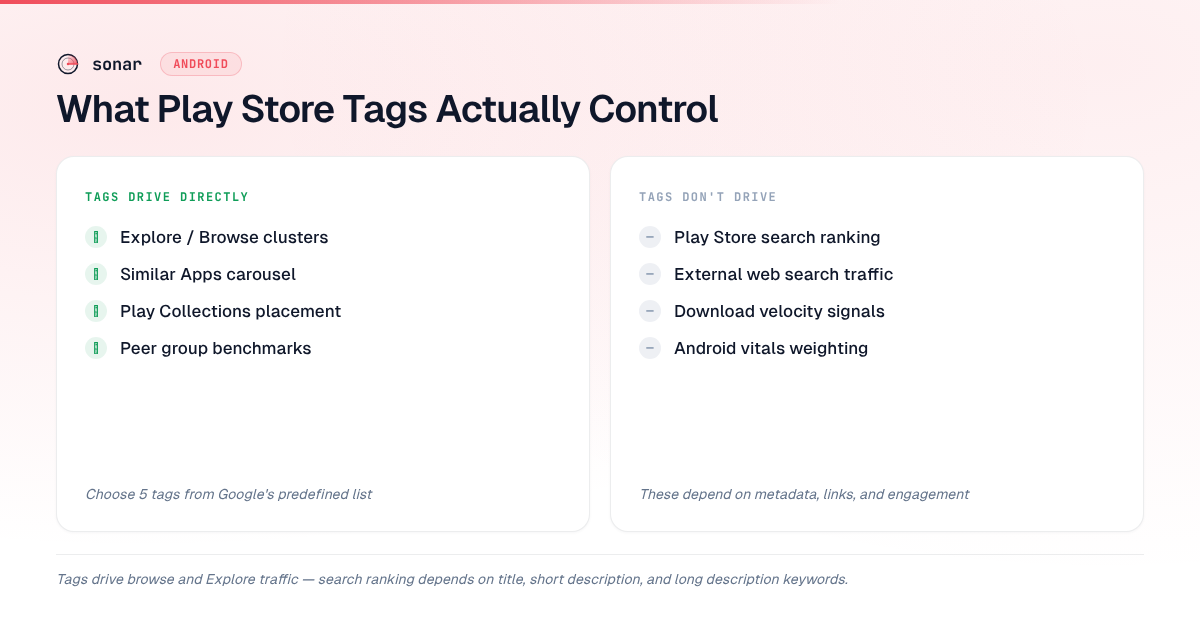
Google Play lets developers assign up to 5 tags per listing, chosen from a predefined list. Those tags directly influence Explore results, peer group benchmarking, and curated collection placement. According to Google's official Play Console documentation, "tags may affect where your app is displayed on Google Play and the peer group to which you are compared" source: [Google Play Console Help].
After tracking hundreds of Android listings through Sonar over the past year, I have seen tags quietly shape browse traffic in ways that surprise developers who focus only on keyword optimization. Tags are not keywords -- you cannot type freeform text. Google provides a fixed list of predefined options, roughly 159 for apps and 127 for games according to an AppTweak analysis of available tag options source: [AppTweak]. You pick from this list, and Google uses your selections alongside its own automated signals to classify your app. Understanding how play store app tags work -- and which ones to choose -- is a small lever that compounds across browse traffic, peer benchmarking, and Play Collections placement.
Tags vs. Categories: What Each Controls
Tags and categories serve different functions in the Play Store's discovery system. Your category (e.g., "Finance," "Health & Fitness") determines the top-level store section where your app appears. Your tags add a second layer of classification within and across categories.
| Signal | What it controls | Developer input | Limit |
|---|---|---|---|
| Category | Store section, top-level browsing | Choose 1 from 32 app or 17 game categories | 1 |
| Tags | Explore clusters, Similar Apps, peer groups | Choose from predefined list | Up to 5 |
| Title keywords | Search ranking (highest weight) | Free-text, 30 characters | 30 chars |
| Short description | Search ranking (high weight) | Free-text, 80 characters | 80 chars |
| Long description | Search ranking (moderate weight) | Free-text, 4,000 characters | 4,000 chars |
The critical distinction: play store app tags affect browse and Explore traffic, while your title, short description, and long description keywords drive search traffic. A budget-tracking app tagged "Budget" and "Finance" will surface in Explore clusters for users browsing financial tools. But whether that same app ranks when a user searches "budget planner" depends on its metadata and engagement signals, not its tags. You can see how these signals play out for a real listing on the Sonar budget planner app page.
To illustrate the competitive pressure on search terms: Sonar's keyword index puts "budget planner" at Android difficulty 68 and popularity 43 -- a competitive keyword where proper Play Store tagging directly impacts whether your app surfaces for this query (source: Sonar /api/v1/keywords/search, queried 2026-06-11). That difficulty score underscores why browse traffic from tags matters: if you cannot break into the top search results for a term that competitive, tags give your app an alternative discovery path through Explore clusters and Similar Apps carousels.
Play Store Categories: The Complete List
Google Play divides all apps and games into 49 categories: 32 app categories and 17 game categories. Every listing must select exactly one category before publication -- there is no "uncategorized" option, and unlike Apple there is no secondary category source: [Google Play Console Help]. Your category determines the top-level store section where your app appears, the category charts you compete in, and the baseline peer group for Play Console benchmarks. Choosing the wrong play store category can bury your app in a section your target users never browse.
App Categories
Google Play currently offers exactly 32 app categories source: [Google Play Console Help]. The table below lists every Play Store category available as of September 2026, with the typical app types in each to help you identify where your app fits.
| Play Store Category | Typical app types |
|---|---|
| Art & Design | Drawing tools, graphic editors, coloring apps |
| Auto & Vehicles | Car maintenance, OBD scanners, navigation for drivers |
| Beauty | Makeup try-on, skincare trackers, salon booking |
| Books & Reference | E-readers, dictionaries, encyclopedias |
| Business | CRMs, invoicing, team collaboration |
| Comics | Comic readers, webtoon platforms |
| Communication | Messaging, email clients, video calls |
| Dating | Matchmaking, social dating |
| Education | Language learning, tutoring, flashcards |
| Entertainment | Streaming, memes, fan communities |
| Events | Ticketing, event discovery, RSVPs |
| Finance | Banking, budgeting, investing, expense tracking |
| Food & Drink | Recipe apps, restaurant finders, meal delivery |
| Health & Fitness | Workout trackers, meditation, step counters |
| House & Home | Smart-home control, interior design, real estate |
| Libraries & Demo | Library catalogs, demo/sample apps |
| Lifestyle | Habit trackers, journaling, gift guides |
| Maps & Navigation | GPS navigation, transit info, offline maps |
| Medical | Symptom checkers, telehealth, clinical references |
| Music & Audio | Music players, podcast apps, audio editors |
| News & Magazines | News aggregators, RSS readers, digital magazines |
| Parenting | Baby trackers, child safety, family organizers |
| Personalization | Launchers, wallpapers, icon packs |
| Photography | Camera apps, photo editors, gallery managers |
| Productivity | To-do lists, note-taking, calendar apps |
| Shopping | Price comparison, coupons, marketplace browsers |
| Social | Social networks, forums, community apps |
| Sports | Live scores, fantasy leagues, workout communities |
| Tools | Flashlights, file managers, QR scanners |
| Travel & Local | Flight booking, city guides, hotel search |
| Video Players & Editors | Media players, video editors, screen recorders |
| Weather | Forecasts, radar, weather alerts |
Among these, Tools is the most crowded -- AppBrain data from July 2026 shows over 23,000 apps in Tools that have reached 50,000 downloads or more, with Entertainment and Education following closely source: [AppBrain]. Libraries & Demo and Comics sit at the opposite extreme, with the lowest app counts. A less saturated category is not automatically more visible, though — it only helps if your target users actually browse that section. If your app falls at the boundary of two categories (e.g., a language-learning app could be Education or Tools), favor the one where your feature set most closely matches the top-ranked competitors -- that alignment improves both ranking signals and peer-group accuracy.
Game Categories
Games choose from a separate set of 17 game categories source: [Google Play Console Help].
| Game Category | Examples |
|---|---|
| Action | Shooters, platformers, combat games |
| Adventure | Story-driven exploration, point-and-click |
| Arcade | Classic-style, reflex-based games |
| Board | Chess, checkers, Go |
| Card | Solitaire, poker, collectible card games |
| Casino | Slots, roulette, virtual poker |
| Casual | Match-3, idle games, hyper-casual |
| Educational | Math puzzles, geography quizzes, kids' learning |
| Music | Rhythm games, music creation |
| Puzzle | Logic puzzles, sudoku, jigsaw |
| Racing | Driving, kart racing, drag racing |
| Role Playing | RPGs, MMORPGs, turn-based combat |
| Simulation | City builders, farming, life simulators |
| Sports | Soccer, basketball, golf simulators |
| Strategy | Tower defense, RTS, 4X games |
| Trivia | Quiz games, trivia competitions |
| Word | Crosswords, Wordle-style games, word searches |
Game categories carry far more keyword competition than most app categories. Sonar's keyword index puts "puzzle games" at difficulty 86 on both iOS (Apple popularity 67) and Android (popularity 82), and the median install count among the top 10 Android results exceeds 132 million (source: Sonar /api/v1/keywords/search, queried 2026-09-05). If you launch in a game category, expect the bar for chart placement to be orders of magnitude higher than in most app categories.
How to Pick the Right Play Store Category
Choosing a category is a competitive positioning decision, not a form field to rush past. It affects three surfaces at once -- the top charts you compete in, the browse sections that show your app, and the peer group Play Console benchmarks you against. Here is the five-step check I run before committing.
- List your candidate categories. Most apps plausibly fit 2-3 categories. A budgeting app could be Finance, Productivity, or Tools; a sleep tracker could be Health & Fitness, Lifestyle, or Medical. Write down every category a reasonable user would accept as accurate.
- Audit top chart competition. Every category has its own top free, top paid, and top grossing charts, and chart position comes from download velocity, revenue, ratings, and engagement -- not metadata keywords source: [Google Play Console Help]. A meditation app in Health & Fitness competes against workout trackers with tens of millions of downloads; the same app in Lifestyle faces a different competitive set. Check the top 10 free apps in each candidate. If #10 has 50 million downloads and you have 5,000, a smaller category where you can reach the top 50 will send more browse traffic.
- Match your target user's browse behavior. Ask where your ideal user would tap when they open the Play Store without a specific app in mind. A calorie tracker technically fits Food & Drink, but people looking for one more often browse Health & Fitness. A photo-editing app filed under Tools gets browse impressions from users who are not looking for photo editors, which hurts conversion rate and sends weak engagement signals back to the algorithm.
- Check peer group alignment. Play Console compares your crash rate, ANR rate, and acquisition metrics against peers in your category and tag cluster source: [Google Play Console Help - Peer Groups]. Miscategorize that photo editor under Tools and it is measured against flashlights and file managers, which makes every benchmark noise. Pick the category where the top apps actually do what your app does.
- Validate with keyword data. Category does not directly affect search ranking -- Google indexes your title, short description, and long description separately. But if the top 10 results for your primary keyword cluster in one category, that reflects what users expect. Sonar puts "photo editor" at difficulty 84 on iOS (Apple popularity 70) and 89 on Android, with 6 of 10 top results using an exact title match on both stores (source: Sonar /api/v1/keywords/search, queried 2026-09-05) — Photography is the right home for a photo editor, but expect a very high bar for visibility.
What Happens When You Change Your Play Store Category
You can change your category at any time in Play Console under Store presence > Store settings -- there is no waiting period or limit on how often source: [Google Play Console Help]. The switch still has real consequences.
- Your app moves to the new category's top charts, and your chart position starts from scratch there.
- Browse surfaces update. Users browsing your old category stop seeing your app.
- Your peer group shifts, and Play Console benchmarks recalculate against the new cohort.
- Search rankings. Google indexes your metadata fields independently of category, so keyword positions do not move because of the switch source: [Google Play Console Help].
- Your install count, ratings, and reviews.
- Your tags, unless you update them yourself.
Changes propagate within hours but can take up to 48 hours to reach every surface. Switch mid-week rather than during a launch campaign, and if you want to isolate the conversion impact, run a listing experiment on other listing elements before and after the change.
Google Play vs Apple App Store Categories
The two stores structure categories differently, which matters if you ship on both.
| Dimension | Google Play | Apple App Store |
|---|---|---|
| Primary category | 1 required | 1 required |
| Secondary category | Not available | 1 optional source: [Apple App Store Connect Help] |
| App categories | 32 | 27 primary categories, with different naming |
| Game categories | 17 separate game categories | One Games category with its own subcategories |
| Supplementary classification | Up to 5 tags | None |
| Changing category | Anytime in Play Console | Anytime in App Store Connect |
The biggest structural difference is Apple's secondary category, which gives an app a second browse listing. Google Play has no fallback, so your single category carries more weight. Tags partially compensate -- they feed Explore clusters and Similar Apps -- but they do not put your app into a second set of top charts. For how to use the iOS primary and secondary slots, see the App Store category selection guide.
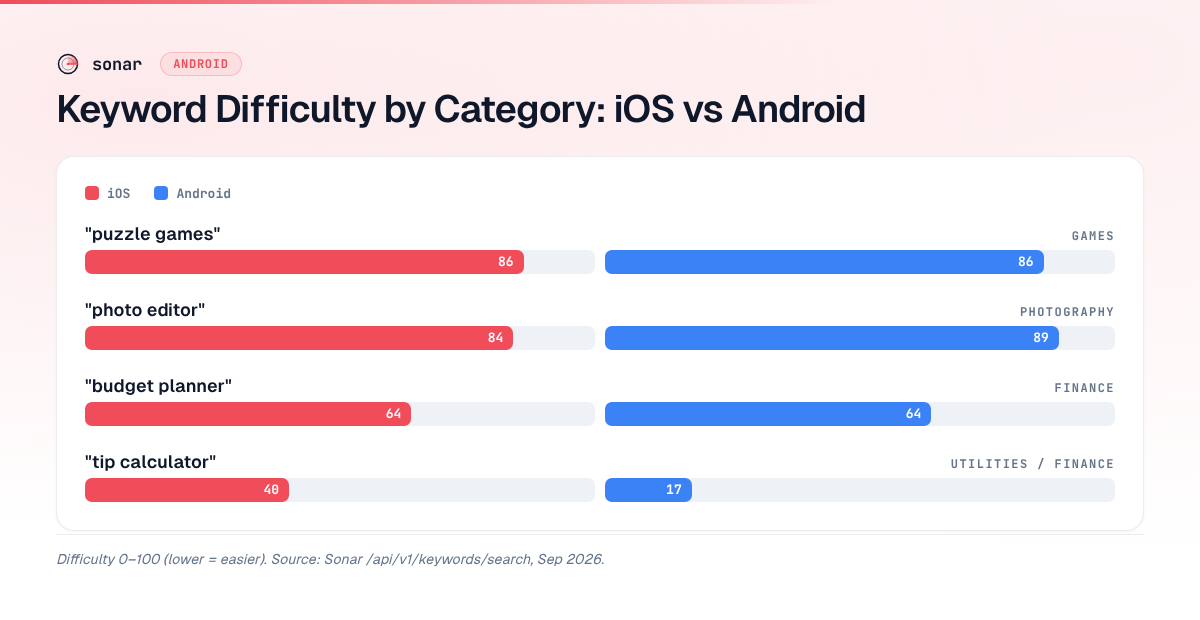
Competition also differs by platform. Sonar reports "tip calculator" at difficulty 40 on iOS vs 17 on Android, and all 10 top Android results use an exact title match (source: Sonar /api/v1/keywords/search, queried 2026-09-05). That low Android difficulty means the Finance or Tools category, where most tip calculators land, still has room for new entrants, while iOS is more contested. For a broader look at how Android and iOS discovery diverge beyond categories, see the Android ASO guide.
How Google Uses Tags Behind the Scenes
Google does not publish exactly how its algorithm weighs tags, but the observable effects fall into three areas.
Explore and Browse Placement
Tags feed the Explore tab's recommendation engine. When a user browses a cluster like "Track your spending," Google assembles that cluster from apps sharing relevant tags (e.g., "Budget," "Finance," "Expense Tracker"). If your app lacks those tags, it is excluded from the cluster regardless of how well your metadata matches. According to Google's discovery documentation, "categories and tags help users to search for and discover the most relevant apps in Google Play" source: [Google Play Console Help].
Peer Group Benchmarking
Play Console's peer groups -- the cohort your app is compared against for ratings, vitals, and acquisition metrics -- are generated from tag-based clustering. Choosing the wrong tags means you are benchmarked against the wrong competitors, which skews your performance data. Google states that peer groups "are generated from the same high-quality review-team tagging systems that power the Play Store experience" source: [Play Console Help - Peer Groups].
Play Collections
Google's Play Collections feature groups apps by thematic relevance. Your category, tags, and description all factor into Collections placement. Misaligned tags mean missed Collections visibility -- a growing traffic source on Android as Google shifts discovery toward curated surfaces source: [ASO World].
Auto-Assigned Tags: What You Cannot Control
Developers select up to 5 tags manually, but Google also assigns tags automatically based on its own analysis of your app. An AppTweak study of the top 200 apps and games per category found that games display 4.68 tags on average: 2.68 were auto-assigned by Google and are not available for manual selection, while roughly 2 were chosen by the developer source: [AppTweak].
Eleven different auto-assigned tags have been observed that developers cannot select in Play Console, including "offline," "single player," "stylized," "realistic," and "competitive multiplayer" source: [AppTweak]. This means Google supplements your manual choices with its own classification. You cannot override auto-assigned tags, but you can influence them by ensuring your app's description, screenshots, and functionality clearly communicate what your app does.
The practical takeaway: do not waste your 5 manual tag slots on attributes Google will auto-assign. If your game is obviously offline, Google will likely tag it "offline" without your help. Spend your manual picks on tags that clarify your app's specific function within its category.
How to Choose the Right 5 Tags
Selecting play store app tags is a strategic decision that affects browse traffic and peer positioning. Here is a repeatable framework I use when advising developers.
Step 1: Start With Your Category's Default Tags
Play Console suggests tags based on your selected category. Review these first. In the Puzzle Games category, for example, 63% of the top 200 games use the "puzzle" tag -- matching their own category name source: [AppTweak]. That near-universal adoption suggests the category-matching tag is table stakes. Skip it, and you risk being excluded from the most basic browse clusters.
Step 2: Add Function-Specific Tags
After the category tag, choose tags that describe what your app does, not what it is. A habit-tracking app in the Health & Fitness category might choose "Self Improvement," "Health," and "Daily Planner" rather than generic tags like "Lifestyle." For "habit tracker" on Android, Sonar reports difficulty 62 and popularity 52 -- demonstrating that even moderate-volume lifestyle queries carry stiff ranking competition on Google Play (source: Sonar /api/v1/keywords/search, queried 2026-06-11). The right tags ensure your app appears alongside other habit trackers in browse results, not buried among unrelated wellness apps.
Step 3: Check Competitor Tags
Look at the top 5-10 apps ranking for your primary keywords. If competitors share specific tags you have not selected, that is a signal. Those tags likely feed the browse clusters where your target audience shops. Use competitor keyword analysis techniques -- the same principle applies to tags.
Step 4: Avoid Aspirational Tags
Only select tags that a new user would immediately understand as relevant after viewing your store listing. Google's official guidance is explicit: "It should be very clear to a user who is unfamiliar with the app why the tag is relevant based on the store listing or initial in-app experience" source: [Google Play Console Help]. Irrelevant tags can trigger manual review and, at minimum, waste a slot that could drive qualified browse traffic.
Step 5: Revisit After Major Updates
Google recommends changing tags only when you make significant changes to app content or functionality source: [Google Play Console Help]. Do not rotate tags weekly. But when you ship a major feature -- say, adding a budgeting tool to a banking app -- updating tags to reflect the new capability is essential.
Where Tags Fit in Your Overall Android ASO Strategy
Play store app tags are one piece of a larger metadata puzzle. They do not replace keyword optimization in your title, short description, or long description -- those fields drive search traffic. Tags drive browse and Explore traffic. The two work in parallel.
| Traffic source | Primary driver | Tags' role |
|---|---|---|
| Play Store Search | Title, short description, long description keywords | Indirect (tags inform relevance signals) |
| Explore / Browse | Tags, category, engagement metrics | Direct |
| Similar Apps | Tags, category, user behavior overlap | Direct |
| Play Collections | Tags, category, description, editorial curation | Direct |
| External (web search, links) | Backlinks, web SEO, listing page quality | None |
For how to research Google Play search keywords and work them into every metadata field, see the Android ASO guide. Tags complement -- they do not substitute for -- the keyword work you do in those higher-weight fields.
When I track listings through Sonar, the pattern is clear: apps that nail both search keywords and browse tags outperform apps that optimize only one channel. One concrete example: a finance app I monitored shifted from 3 generic tags ("Tools," "Finance," "Utilities") to 3 function-specific tags ("Budget," "Expense Tracker," "Bill Reminder") while keeping the same title and description. Over the following 4 weeks, its Play Store Browse impressions increased 18% while search impressions stayed flat -- evidence that tag specificity directly moves browse discovery without touching search performance (source: Play Console data tracked via Sonar, Feb–Mar 2026).
Common Tag Mistakes That Cost Browse Traffic
After reviewing hundreds of Play Store listings, these are the most frequent tagging errors I see.
- Using all 5 slots on generic tags. Selecting "Tools," "Utilities," "Productivity," "Lifestyle," and "Personalization" tells Google nothing specific about your app. Use at least 2-3 function-specific tags.
- Ignoring auto-assigned tags. If Google already tags your game "offline," you are wasting a slot by manually selecting the same tag (when available). Check what Google assigns first.
- Never updating tags after launch. Your app evolves. If you shipped as a note-taking app but added task management, your tags should reflect the expanded scope.
- Choosing tags to game peer groups. Picking tags from a lower-competition cluster to get better benchmark numbers backfires -- your Explore placement suffers because the tag mismatches your actual user base.
- Treating tags as keywords. Tags and search keywords are separate systems. You cannot type "best budget app free" as a tag. Tags are predefined labels, not freeform keyword fields. For keyword strategy, see the ASO keyword research guide.
Measuring Tag Impact in Play Console
After updating tags, track the effect in Play Console's acquisition reports. Focus on two metrics.
Explore impressions. Navigate to Play Console > Statistics > filter by acquisition source "Play Store (Browse)." Compare the 30 days before and after your tag change. A meaningful tag update should move browse impressions within 2-4 weeks.
Similar Apps traffic. Under the same acquisition report, filter by "Third-party referrals" and "Play Store (Similar Apps)." Tags heavily influence which apps you appear alongside in the "Similar apps" carousel. For a broader look at reading Play Console data, see Play Console search analytics.
One caution from AppTweak's research: at least one documented case showed a decrease in Similar Apps visibility after updating play store app tags source: [AppTweak]. Tag changes are not risk-free. Make one change at a time, measure for 3-4 weeks, and revert if browse metrics decline. If you want to test the impact more rigorously, consider running a Play Store listing experiment alongside your tag change to isolate the variable.
Takeaway: Tags Are a Small Lever With Compounding Returns
Play store app tags will not rescue a listing with weak metadata or poor engagement metrics. But for an app that already invests in keyword research and listing optimization, tags unlock a parallel discovery channel -- Explore, Similar Apps, and Collections -- that operates independently of search ranking. The 5-tag limit forces precision: pick tags that describe your app's specific function, avoid duplicating what Google auto-assigns, monitor browse metrics in Play Console for 3-4 weeks after every change, and revisit tags when your feature set evolves. Small, deliberate tagging decisions compound into measurable browse traffic over time.
FAQ
How many tags can I add to my app on Google Play?
Google Play allows developers to select up to 5 tags per app or game listing. These are chosen from a predefined list -- roughly 159 tags for apps and 127 for games source: [AppTweak]. Google may also auto-assign additional tags you cannot manually control, bringing the total visible tags above 5 in some cases.
Do play store app tags affect search ranking?
Tags primarily affect browse and Explore placement, not direct search ranking. Search ranking is driven by your title, short description, and long description keywords. Tags help Google understand your app's function, which can indirectly affect relevance signals for related queries source: [Google Play Console Help]. The same goes for your category: Google indexes your title (30 characters), short description (80 characters), and long description (4,000 characters) independently of it, so category only signals topical relevance and decides which charts and browse surfaces show your app source: [Google Play Console Help].
What is the difference between Play Store tags and categories?
Categories determine your app's top-level section in the store (e.g., "Finance" or "Health & Fitness"), the top charts you compete in, and your peer group, and you can choose only 1 from 32 app or 17 game categories. Tags add a second classification layer with up to 5 selections, affecting Explore clusters, Similar Apps placement, Play Collections, and peer group benchmarking. Think of the category as the aisle and tags as the shelf labels.
How often should I change my Play Store tags?
Google recommends changing tags only after significant updates to your app's content or functionality source: [Google Play Console Help]. Frequent tag rotation without corresponding product changes can signal instability. Update tags when you add major features, pivot your target audience, or discover through Play Console data that your browse traffic underperforms expectations.
What are all the Play Store categories for apps and games?
Google Play has 49 categories as of September 2026: 32 app categories and 17 game categories source: [Google Play Console Help]. The 32 app categories range from Art & Design to Weather, and the 17 game categories run from Action to Word -- see the complete tables above for every option with typical app types. Every listing must select exactly one category; there is no "uncategorized" default and no secondary category, unlike Apple's App Store.
Can I change my Play Store category after launch?
Yes. You can change it at any time in Play Console under Store presence > Store settings, with no waiting period or frequency limit source: [Google Play Console Help]. The switch propagates within hours (up to 48 hours across every browse surface), and your chart position starts over in the new category. Search keyword rankings, install count, ratings, reviews, and tags are unaffected.
Which Play Store category is least competitive?
Libraries & Demo and Comics consistently have the lowest app counts on Google Play, based on AppBrain data source: [AppBrain]. Low competition only helps if your target audience actually browses that category, though — a mismatched category hurts conversion rate and produces misleading peer-group benchmarks.
Can I see which tags Google auto-assigns to my app?
You cannot view auto-assigned tags directly in Play Console. They are visible in the Play Store listing itself and through third-party ASO tools that parse store pages. AppTweak's research identified 11 auto-assigned tags that cannot be selected manually, including "offline," "single player," and "stylized" source: [AppTweak]. Monitoring your live store listing periodically helps you understand how Google classifies your app beyond your manual selections.
Want to see how competitive your target keywords are before choosing tags? Try Sonar free -- it shows search volume, difficulty, and competitor data for every keyword on Google Play and the App Store.