sonar
sonar
How store listing A/B testing works on both stores
Both app stores have a free, built-in A/B test for your listing. Apple calls it product page optimization (PPO); Google calls it store listing experiments. Each one splits real store traffic at random between your current listing and one or more variants, then reports which version turns more visitors into downloads. Because the variants run at the same time on randomly assigned visitors, the result is causal in a way a before-and-after comparison never is: a seasonal dip or a featuring spike hits every variant equally.
The two tools share the idea and differ in the details that decide what you can learn. Apple only tests creative (icon, screenshots, preview video) and needs App Review for new assets. Google also tests description text in localized experiments, but allows fewer variants per test. This guide covers both: what each can test, the limits, how long to run a test, how to read the results, and what to test first.
One thing no outside tool can show you is whether a competitor is running a test, or what won. Variants are shown inside the store apps to a random share of visitors, and the results live in each developer's own console; neither appears in the public listing data that ASO tools, Sonar included, read. What you can see from outside is which keywords bring people to your page, and that is where test hypotheses should start.
What you can test on each store
| Element | Apple product page optimization | Google Play store listing experiments |
|---|---|---|
| App icon | Yes (every icon variant must already ship in the live app binary) | Yes |
| Screenshots | Yes | Yes |
| Preview video | Yes (app previews) | Not in Google's current list of testable attributes |
| Feature graphic | No (iOS has none) | Yes |
| Short and full description | No | Yes, in localized experiments |
| App name and subtitle | No | No |
| Keywords, promotional text, price | No | No |
Sources: Apple Developer — Product page optimization; Play Console Help — A/B test store listings.
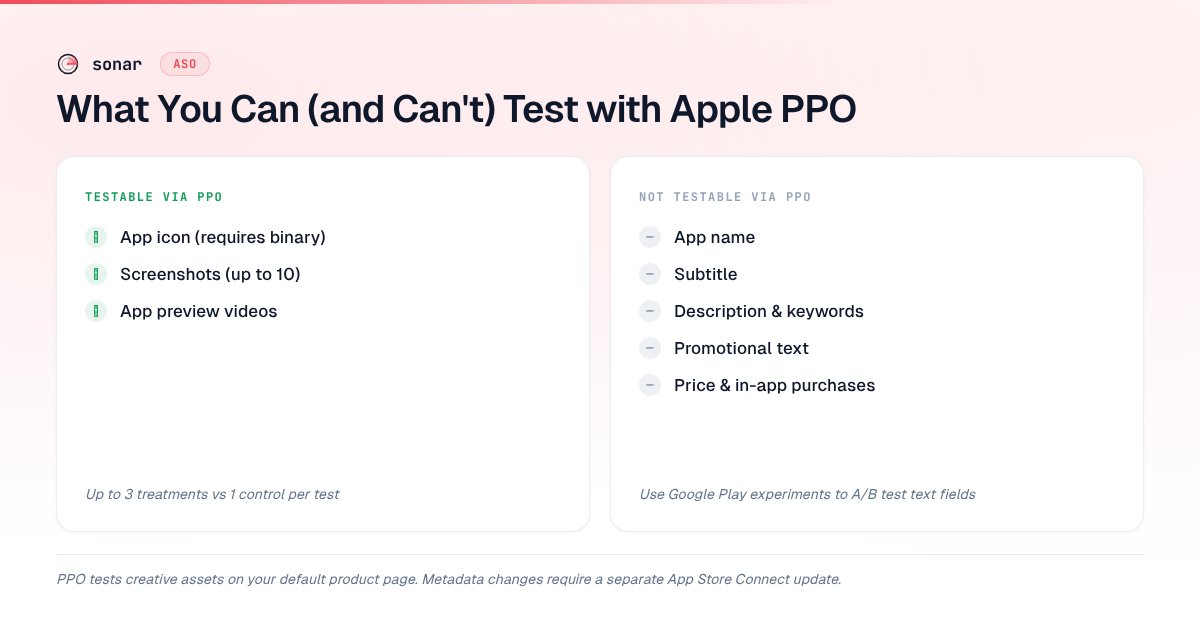
The biggest practical difference is text. On iOS, the name, subtitle and keyword field change only with a new app version, and none of them can be split-tested. If you want to test messaging, test it where the stores allow: in screenshot captions on either store, or in a Play description experiment, then carry the winning angle into your iOS subtitle with your next release.
Product page optimization: how Apple's A/B test works
PPO tests up to three treatments against your original product page, using live traffic from people on iOS and iPadOS 15 or later. You can run one test at a time, and it runs for up to 90 days or until you stop it source: [Apple Developer — Product page optimization]. These setup choices shape the result:
- Traffic proportion. You choose the share of visitors who see a treatment instead of the original, and that share is split equally across treatments: 30% of traffic with three treatments gives each one 10% source: [App Store Connect Help — Create a test]. More treatments, or a smaller share, means a longer test.
- Localizations. All of your localizations are included by default, and visitors in a localization you exclude never enter the test. Each treatment can be localized in every language your app supports or only the ones you choose, so you can test market-specific creative in one country.
- Review. New screenshots, previews or icons in a treatment must be approved by App Review before the test can start. Tests without alternate icons can be submitted independently of an app version, and if you only reorder screenshots or previews that are already live, or only swap the icon, the assets count as approved already source: [App Store Connect Help — Configure test treatments].
- Icons ship in the binary. Every alternate icon you want to test has to be in the app binary currently on the App Store (built with Xcode 13 or later, with alternate icons in the asset catalog, 1024 x 1024 pixels). An icon test therefore starts with an app update. Someone who downloads from an icon treatment sees that icon on their device, and if you apply an icon treatment, include the icon when you submit your next version.
Watch the release calendar as well. Releasing a new app version mid-test can skew the results if it changes assets or metadata the test is measuring source: [App Store Connect Help — Overview of product page optimization], and a stopped test can't be restarted: you would have to create it again. PPO isn't available for custom product pages or for the Apple Watch and iMessage App Stores.
Reading PPO results
Results appear in App Analytics once five first-time downloads are attributed to the test, and they update daily. For each variant you get unique impressions, an estimated conversion rate (the share of viewers who downloaded or pre-ordered), the improvement over the baseline, and a confidence level. When a treatment reaches 90% confidence, Apple labels it Performing Better or Performing Worse, and a test that is unlikely to reach significance at its current pace is marked Likely to be Inconclusive source: [App Store Connect Help — Product page optimization in App Analytics].
Apple's own advice is to wait until at least one treatment has been declared better or worse with at least 90% confidence before you apply it or stop the test. Applying a treatment makes it your original product page for everyone, and doing so while the test is running ends the test.
Google Play store listing experiments: how they work
Google offers two experiment types source: [Play Console Help — A/B test store listings]:
- Default graphics experiments test the icon, feature graphic and screenshots of your listing in its default language.
- Localized experiments test those graphics and/or your short and full descriptions in up to five languages. Only visitors who view the listing in those languages see the variants.
You can run one default graphics experiment, or up to five localized experiments, at the same time. To set one up:
- In Play Console, go to Grow users > Store presence > Store listings.
- In the Experiment column for the listing, click Set up.
- Name the experiment, choose the type (and the languages, for a localized one), and pick the target metric: unique user install clicks, unique user open clicks, or unique user pre-registration clicks.
- Optionally adjust the advanced settings: the number of variants (up to two against the current listing), the share of visitors who see a variant (split equally across variants), the minimum detectable effect, and the confidence level. Google's defaults return a result fastest; stricter settings make the experiment run longer.
- Choose the asset to test, upload the variants, save, and submit the changes for review from the publishing overview.
No new app build is needed for any of it, icon tests included. The creation page estimates how long the experiment needs to reach a significant result, and experiments stop on their own after six months: data collection ends, no variant is applied, and all traffic returns to the current listing.
Reading Play experiment results
Play Console reports results against your target metric. It tells you which option performed best, explains the call using the confidence interval and the minimum detectable effect, and recommends an action where it has one. A difference smaller than the minimum detectable effect is called a Draw, and "More data needed" means the experiment hasn't collected enough yet. If several variants beat the current listing, or the result is a Draw, you decide what to apply; if the current listing won, keep it.
Read the interval rather than the headline number. A range like "+2.1% to +8.7%" is a win. A range like "-1% to +12%" isn't, however good the midpoint looks.
How long to run a test
Neither store sets a minimum duration, and both estimate one for you when you create the test, based on your own impressions and downloads. Apple's create-test screen asks what improvement in conversion rate you want to detect and estimates from there; Play shows its estimate on the experiment creation page. Trust those numbers over any generic table, because they come from your traffic.
Two rules hold on both stores. Run for at least a full week, as Google recommends, so weekday and weekend visitors are both in the sample source: [Google Play — Store listing experiments best practices]. And the smaller the lift you want to detect, the more traffic you need: halving the detectable lift takes roughly four times the visitors. Low-traffic apps should test bold changes, not subtle ones, or accept tests that run for weeks.
Stopping early because a variant looks good after three days is the classic mistake. Early numbers swing: a variant showing +15% on day three can settle at +3% by day fourteen, or flip negative.
Which listing element to A/B test first
Rank candidates by how many people see the element and what a test costs you:
| Element | Where you can test it | Why it matters | Cost of a test |
|---|---|---|---|
| App icon | Both stores | Seen on every surface: search, browse, charts, and the home screen | Play: an upload. iOS: alternate icons must ship in an app update first |
| First screenshots | Both stores | On iOS, the first one to three appear in search results when there's no preview | An upload; reordering live iOS screenshots needs no new review |
| Preview video | Apple PPO | Autoplays muted on the product page and in search results | New footage for every variant |
| Feature graphic | Google Play | Cover image for your preview video, and shown on some surfaces | An upload |
| Short and full description | Google Play (localized experiments) | Read by fewer visitors, but used for search | Text only, but watch your rankings |
Google's own best-practice list starts in the same place: the biggest impact comes from testing icons, videos and screenshots, one asset at a time.
Icon. On Play it's a simple upload, so it's the natural first test. On iOS, add the alternate icons to a release you're shipping anyway, then start the test. Either way, test a specific hypothesis ("a simpler glyph will stand out at search-result size"), not a mood board. For what tends to get tapped, see the app icon design guide.
Screenshots. Usually the best return per hour of work, and on iOS the fastest test to launch, because screenshot treatments need no new binary. The variables worth testing are listed below.
Preview video. Test a different opening or value proposition against your current video, and keep the screenshots identical so the result belongs to the video. If you don't have a preview yet, read when an app preview helps and when it hurts before paying for one.
Descriptions (Play only). Smaller conversion effects, but they double as a search test; see the section on descriptions below.
Screenshot variables worth testing
Test one variable at a time so you can attribute the change to a specific creative decision:
- First screenshot content: a feature highlight vs. social proof ("1M+ downloads") vs. an emotional benefit ("Never overpay again"). The first screenshot shows in search results and decides whether people tap into the full listing.
- Caption style: short captions (3–5 words) vs. longer benefit statements. Shorter captions usually read better at thumbnail size, especially on Play's small screenshot strip.
- Background color: a high-contrast background that separates the screenshot from the store's light and dark themes, against your current one.
- Number of screenshots: Apple allows up to 10 and Google up to 8, but most visitors decide on the first few. Test whether frames 4 and 5 change anything for the people who scroll.
- Order: swap positions 2 and 3 to see which feature hook carries more weight.
Use keyword data to design your variants
Experiments get more useful when you know which keywords bring people to your page. Keyword data tells you which audiences find your app, and so which framings deserve a variant.
Take "tip calculator". Sonar's keyword index puts it at Android difficulty 21 and popularity 45 (30 results), versus iOS difficulty 40 and popularity 37 (148 results) (source: Sonar /api/v1/keywords/search, queried 2026-06-05). Lower competition and higher popularity make Android the easier store to win this keyword on, and the better place to start testing creative aimed at it.
Among the top Android results, Sonar surfaces Tip N Split Tip Calculator by Handy Apps (Finance) alongside Tip Calculator by Skol Games LLC (Food & Drink) (source: Sonar /api/v1/apps/search, queried 2026-06-05). That split between Finance and Food & Drink is exactly what should inform a test. A Finance-listed tip calculator might test screenshots that stress bill-splitting accuracy, while a Food & Drink listing could test restaurant-oriented imagery. The experiment tells you which framing works for the people who arrive through that keyword.
Conversion and rankings also feed each other. A variant that converts better brings more downloads from the same impressions, and download volume is widely believed to feed search ranking on both stores (neither store publishes its formula). So a creative test can move keyword positions indirectly without touching your metadata, which is one more reason to track rankings while a test runs.
A solid keyword research process is the prerequisite: know your top 10–20 keywords by impression volume before you design experiments, because variants should be tailored to the intent behind those keywords.
Testing descriptions for keyword coverage (Google Play)
Description experiments, which only Google Play offers, serve two goals at once: conversion and discovery. A variant that converts better but loses keyword coverage could cost you installs overall if it drops you out of search results for important terms.
For "subscription tracker," Sonar shows Android difficulty 26 and popularity 24 (10 results). Related long-tails like "subscription tracker free" (difficulty 25, popularity 19) and "subscription tracker and manager" (difficulty 17, popularity 17) show how fragmented the demand is, and description experiments can exploit that fragmentation (source: Sonar /api/v1/keywords/search, queried 2026-06-05).
You could run two variants: one that leads with "subscription tracker" in the 80-character short description and front-loads the full description, and another that spreads the long-tail variants through the 4,000-character field (how to structure it). The experiment shows which converts better. Google doesn't document how variant text is treated by search while a test runs, so treat a description experiment as a possible ranking change too: record your current positions before launch and watch them with an ASO tool that tracks rankings until the test ends. Play Console doesn't track keyword rankings.
PPO vs custom product pages (and custom store listings)
PPO is easy to confuse with Apple's custom product pages, which solve a different problem. A PPO test splits the traffic of your one default page at random to find out which creative converts best. Custom product pages are up to 70 additional versions of your page, each with its own screenshots, previews and promotional text, and each reached by a specific route: a unique URL, an Apple Ads campaign, or keywords you assign so the page can appear in search results for those terms source: [Apple Developer — Custom product pages]. Their metadata is reviewed too, independently of an app update.
The two work together. PPO tells you what your default page should look like, and custom product pages carry creative tuned to a channel or an intent. PPO can't run on a custom product page, so judge those with each page's own conversion rate in App Analytics. The Apple Search Ads guide covers using them in ad groups.
Google Play's counterpart is custom store listings, which show a different listing to users in chosen countries, among other targeting options. The same split applies: experiments give you causal data on what works, and custom store listings deploy a version to a specific audience. See Play ranking factors iOS doesn't have for how they work.
PPO vs Play experiments at a glance
| Feature | Apple product page optimization | Google Play store listing experiments |
|---|---|---|
| Variants per test | Up to 3 treatments plus the original | Up to 2 variants plus the current listing |
| Tests at once | One | One default graphics experiment, or up to five localized experiments |
| Testable elements | Icon, screenshots, app previews | Icon, feature graphic, screenshots; short and full description in localized experiments |
| Traffic | You set the share; split equally across treatments | You set the audience share; split equally across variants |
| Localization | Choose localizations; each treatment can be localized | Localized experiments in up to five languages |
| Review | App Review approves new assets; icon variants must ship in the binary | Variants are submitted for review; no new build |
| Maximum length | 90 days | Stops automatically after 6 months |
| Results | Conversion rate, improvement and confidence; labeled better or worse at 90% confidence | Result on your target metric, with confidence interval and minimum detectable effect; you set the confidence level |
| Applying a winner | Manual; applying ends a running test | Manual, from the results page |
Sources: Apple Developer — Product page optimization; Play Console Help — A/B test store listings.
If you ship on both stores, the practical split is this: prototype messaging on Play, where text can be tested, and use PPO for the creative layer on iOS, where most tests need no binary.
Building a testing roadmap
Rather than running tests ad hoc, plan a quarter at a time and run them in sequence, applying each winner before the next test starts:
Quarter 1: Icon and first screenshot. These are your most visible assets. Run the icon test first (on iOS, ship the alternate icons in a release beforehand), apply the winner, then test the first screenshot.
Quarter 2: Screenshot set and short description. Test the full screenshot sequence on both stores, and on Play test your short description with two variants.
Quarter 3: Preview video, feature graphic and full description. Lower-impact, or more expensive to produce, but worth testing once the high-visibility assets are settled, especially if your keyword research has surfaced new terms.
Quarter 4: Re-test winners. Audiences, competitors and seasons change. The icon that won in Q1 can lose to a fresh variant later in the year, and re-testing keeps stale creative from quietly dragging conversion down.
This cadence suits apps with a few hundred store visitors a day or more. With less traffic, let each test run 3–4 weeks and merge quarters.
Mistakes that waste a test
- Changing more than one element. If a variant has a different icon and different screenshots, you can't tell which one moved the result. Test one asset per experiment.
- Declaring a winner before confidence is reached. Wait for Apple's 90% label or Play's result, not a promising first week.
- Ignoring the lower bound. If the confidence interval still includes zero or a loss, you haven't won.
- Running more variants than your traffic supports. Each variant takes a slice of the same visitors, so every extra one lengthens the test. With modest traffic, run one variant against the control.
- Testing through unusual traffic. A test that starts on Black Friday, during a featuring, or in a launch week measures that traffic, not your normal visitors.
- Shipping an app version that changes tested assets mid-test. On iOS this can skew a running PPO test.
- Assuming a winner travels. A screenshot set that wins in the US can lose in Japan. Use localized tests where you have meaningful international traffic.
- Not writing down the hypothesis. Record what you tested, why, and what happened, even when the result is flat. Tests compound when each one builds on the last.
Key takeaways
- Both stores have a free, built-in A/B test. Product page optimization on iOS tests icon, screenshots and preview video; Play's store listing experiments test icon, feature graphic, screenshots and, in localized experiments, descriptions.
- Know the limits before you plan. PPO: up to 3 treatments, one test at a time, up to 90 days, icon variants in the binary. Play: up to 2 variants, auto-stop at 6 months, text only in localized experiments.
- Start with the icon and first screenshots. They're seen most, and Google's own best practices point to icons, video and screenshots for the biggest impact.
- Wait for the confidence call. Apple labels results at 90% confidence; Play reports a confidence interval against your minimum detectable effect. Early numbers are noise.
- Track rankings while you test. Neither console shows keyword positions, and conversion changes can move them.
FAQ
How many variants can you test in a product page optimization test?
Up to three treatments plus your original product page, and you can run one test at a time. Each treatment can change the icon, screenshots and app previews, and anything you leave unchanged falls back to the original page source: [Apple Developer — Product page optimization]. Google Play allows up to two variants against your current listing.
How many store listing experiments can I run at once on Google Play?
One default graphics experiment, or up to five localized experiments, at the same time source: [Play Console Help]. Sequence your tests: icon first, then screenshots, then descriptions.
How long should an A/B test on the App Store or Google Play run?
At least a full week, so weekday and weekend traffic are both in the sample, and until the result is called: Apple labels a treatment better or worse at 90% confidence, and Play reports a result against your minimum detectable effect. Both consoles estimate the duration from your traffic when you create the test. PPO tests end after 90 days at most, and Play experiments stop automatically after six months.
Does A/B testing affect keyword rankings?
PPO doesn't touch metadata, so it can't change what you're indexed for; a winning treatment can still help rankings indirectly by bringing in more downloads. Play description experiments are different, because the variant text is part of what search reads, and Google doesn't document how variant text is treated during a test. Record your positions before a description test and monitor them with an ASO keyword tracking tool throughout.
Can I test my app icon without a new release?
On Google Play, yes: upload the icon variants in the experiment and apply the winner without a new build. On iOS, no: every icon you test must already be in the app binary on the App Store, so an icon test starts with an update that includes the alternate icons, and an applied icon treatment needs the icon in your next version.
Can you run PPO and custom product pages at the same time?
Yes. A PPO test runs on your default product page, while custom product pages are separate versions with their own URLs and traffic sources. PPO can't run on a custom product page itself, so compare those by their conversion rates in App Analytics.
What is the difference between store listing experiments and custom store listings?
Store listing experiments use randomized traffic splits to measure which variant converts better, so they give you causal data. Custom store listings show a different page to a defined audience, such as users in specific countries. Experiments tell you what works; custom store listings deploy a version to the audience it suits.
Want to find the keywords your next test should target? Start free trial: Sonar shows search popularity, difficulty and competitor rankings for App Store and Play Store keywords, so you can build variants around real search intent and watch your rankings while the test runs.