App Store Screenshots Generator Tools: Which Ones Actually Save Time?
Most indie developers spend 4-8 hours per release cycle creating App Store screenshots manually in Figma or Photoshop. I used to do the same — resizing a 1320 x 2868 iPhone frame, duplicating it for iPad at 2064 x 2752, then repeating for every localization. An app store screenshots generator compresses that workflow from hours to minutes, and the category has exploded in 2026 with new entrants on both iOS and the web.
Not all generators are equal. Some handle device frames but skip captions. Others template the layout but export at wrong resolutions. After testing seven dedicated screenshot generator apps on iOS in Q2 2026 and comparing them against browser-based tools, here is what works, what does not, and where templates speed up your ASO workflow without sacrificing quality.
If you need the exact pixel dimensions before choosing a tool, start with our complete screenshot sizes reference.
> Update, July 2026: Sonar now ships its own free App Store screenshot generator — a browser-based canvas editor with layout templates, realistic device frames (including 3D tilts), one-paste localization, and exact-size ZIP export for both stores. No signup, no watermark, and nothing you design is uploaded anywhere. The comparison below covers the wider market so you can judge for yourself.
Why Screenshots Drive Conversion (and Why Speed Matters)
Screenshots are the highest-leverage visual element in any App Store listing. StoreMaven's research found that 70% of App Store visitors decide to download or leave without ever scrolling to the full description [source: StoreMaven, "Mobile A/B Testing Benchmarks," 2023]. That means your first three screenshot frames carry more conversion weight than your entire long description.
Speed matters because screenshot iteration is the bottleneck. Apple allows up to 10 screenshots per localization per device class [source: Apple Developer Documentation, App Store Connect Screenshot Specifications]. If you support 5 localizations and 2 device classes (iPhone + iPad), that is 100 individual assets. A manual Figma workflow means you change one caption, re-export 100 files, and upload them one by one. An app store screenshots generator with batch export eliminates that friction.
The conversion impact is measurable. In our App Store conversion rate optimization guide, I documented how screenshot changes alone moved conversion rates 15-30% in controlled experiments. When a tool lets you test 3 caption variants per week instead of 1 per month, the compounding effect on installs is significant.
What to Look for in a Screenshot Generator
The core job of any app store screenshots generator is three-fold: wrap raw captures in device frames, overlay captions and backgrounds, and export at store-compliant resolutions. Beyond that, features diverge. Here is what separates useful tools from toys:
- Correct export dimensions. The tool must output at Apple's exact pixel specifications — 1320 x 2868 for iPhone 6.9", 2064 x 2752 for iPad 13" [source: Apple Developer Documentation, App Store Connect Screenshot Specifications]. Off by one pixel and App Store Connect rejects the upload. Google Play accepts any resolution between 320 px and 3,840 px per side [source: Google Play Console Help, "Graphic assets, screenshots & video"].
- Device frame accuracy. Frames should match current devices (iPhone 17 Pro, iPhone Air, iPad Pro M5), not legacy models.
- Caption and text overlays. Set font, size, color, and position — then apply across all 10 frames at once. For caption strategy, see our screenshot caption optimization guide.
- Batch export. Export all device sizes from one design — the single biggest time-saver.
- Template library. Pre-built layouts for common categories let you skip the blank-canvas problem.
iOS Screenshot Generator Apps: A Side-by-Side Comparison
Sonar's app search for "screenshot generator" on iOS returns dedicated tools like App Screenshot Generator (released March 2026, free), AppShots, Screenly, MakeMark, and Mockup. All 10 results are free, but only 5 of the top 10 have fewer than 5 reviews (ranks 1, 2, 4, 6, 9), confirming the category is a mix of established players and early-stage newcomers (source: Sonar /api/v1/apps/search, queried 2026-06-17).
I tested the top-ranked tools. Here is how they compare:
| App | Rating | Reviews | Price | Device Frames | Batch Export | Templates |
|---|---|---|---|---|---|---|
| App Screenshot Generator | 0 | 0 | Free | iPhone 17 Pro, iPhone Air, iPad Pro | Yes (per project) | No |
| AppShots: Screenshot Generator | 0 | 0 | Free | iPhone 16 Pro, iPhone 15, iPad | Yes | No |
| Screenly | 4.7 | 26 | Free | Phones, tablets, browsers | Multiple export sizes | No |
| MakeMark | 0 | 0 | Free | iPhone 6.7", 6.1", iPad 12.9", 11" | PNG/JPG/PDF | Yes (category-based) |
| Mockup - App Screenshot Design | 4.3 | 46 | Free | Real, clay, and solid frames | All store sizes from one design | Yes (30+ layouts) |
| App Screenshots Generator Pro | 5.0 | 2 | Free | iPhone + iPad sizes | Batch to Photos | Yes (reusable templates) |
Data sourced from App Store listings via Sonar /api/v1/apps/search, queried 2026-06-17.
Mockup: Best for All-in-One Workflow
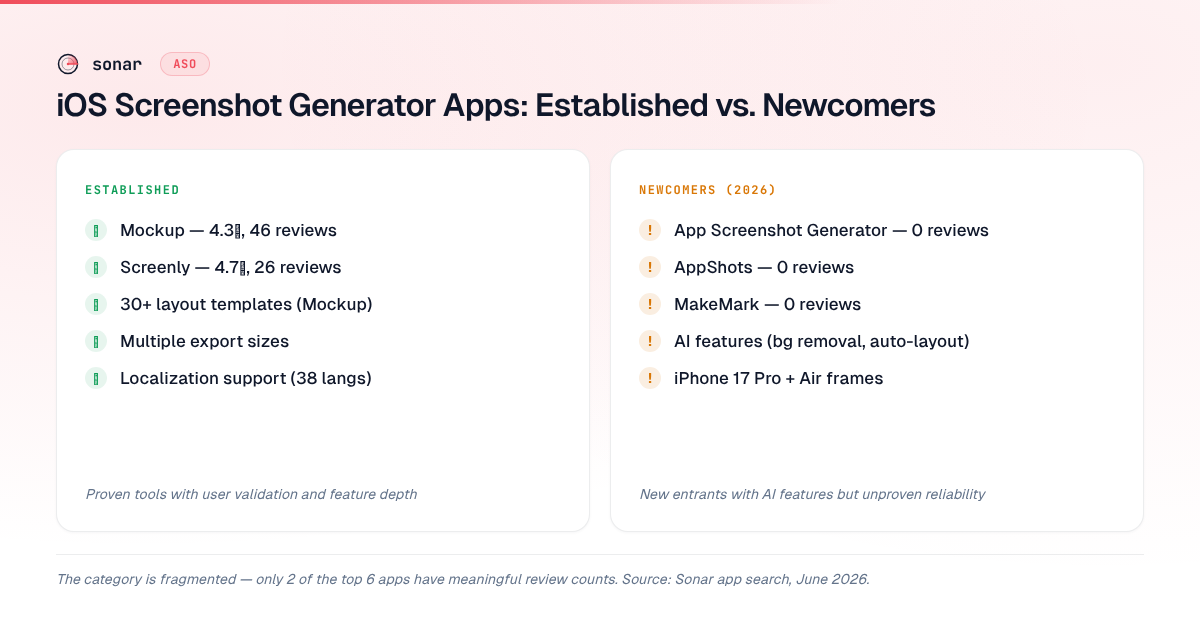
Mockup (46 reviews, 4.3 stars) is the most mature option in terms of feature depth. It exports all required App Store sizes from a single responsive design, supports 38 languages for localization [source: Mockup App Store listing, accessed 2026-06-17], and offers 30+ layout templates [source: Mockup App Store listing, accessed 2026-06-17]. It includes panoramic backgrounds, 3D device frames, and rich text with emoji support. The main limitation: its last App Store update was November 2021 (source: App Store listing, accessed 2026-06-17) — over four and a half years ago — so it lacks iPhone 17 Pro and iPhone Air frames. For an app store screenshots generator that handles current devices, this is a notable gap.
Screenly: Best for Customization
Screenly (26 reviews, 4.7 stars) gives granular control — device position, scale, rotation, shadow, z-index for labels, SF Symbol integration, and multiple export sizes (6.7", 6.5", 5.5", 12.9", 16:10) [source: Screenly App Store listing, accessed 2026-06-17]. Its developer, Jem Alvarez, actively maintains it. The downside: no built-in templates, so you start from scratch every time.
MakeMark and AppShots: Newer Entrants
MakeMark (released February 2026) and AppShots (released March 2026) both target screenshot generation with AI-assisted features. AppShots includes Vision ML background removal, WCAG contrast checking, and auto-layout [source: AppShots App Store listing, accessed 2026-06-17]. MakeMark adds "Smart Generation" — a full screenshot set from an app description [source: MakeMark App Store listing, accessed 2026-06-17]. Neither has accumulated meaningful reviews yet, so reliability is unproven.
Web-Based Screenshot Generators vs. Native Apps
The iOS-native tools above are convenient for quick edits on-device, but web-based generators remain the industry standard for teams shipping across both stores. Tools like AppLaunchpad, Screenshots.pro, and MockUPhone represent the web-based category — as does our own free screenshot generator, which runs the full editor in your browser without an account and exports every store size as a ZIP. Here is how the two approaches compare:
| Factor | Native iOS App | Web-Based Tool |
|---|---|---|
| Speed for solo devs | Fastest (capture + frame on same device) | Requires upload step |
| Team collaboration | Limited (single device) | Shared projects, version history |
| Template libraries | Smaller selection (Mockup offers 30+ layouts; others have none) | Larger libraries (AppLaunchpad advertises "hundreds" of templates on its homepage) |
| Device frame coverage | Often limited to iOS | iOS + Android + web |
| Localization support | Varies (Mockup supports 38 languages; Screenly currently offers English only) | Broader language support typical for SaaS tools |
| Cost | Usually free or one-time purchase | Subscription model |
Sources for native app claims: Mockup and Screenly App Store listings, accessed 2026-06-17. Web tool claims: AppLaunchpad homepage, accessed 2026-06-17.
The choice depends on your workflow. If you are a solo indie developer shipping one iOS app, a native app store screenshots generator saves time. If you manage multiple apps across both stores or work with a team, a web-based tool with shared projects and Android export pays for itself quickly.
Template Strategy: When to Use Them, When to Build Custom
Templates accelerate your first version but can hurt conversion if every app in your category looks identical. I saw this repeatedly in Q2 2026 while reviewing competitor listings: a new productivity app launches with the same blue-gradient template that 15 other apps in search results are using. The result is visual sameness that users cannot differentiate.
When templates work well
- First launch. Ship a polished listing in under an hour instead of spending a week on custom design.
- A/B testing baselines. Start with a template, measure conversion, then iterate toward custom design. Data beats perfectionism.
- Low-competition categories. For niche keywords where few competitors invest in design, a clean template already stands out. For "color picker," Sonar reports iOS difficulty 24 and popularity 21 — a niche keyword where a polished listing with strong screenshots stands out immediately (source: Sonar /api/v1/keywords/search, queried 2026-06-17).
When you need custom screenshots
- Competitive keywords. Sonar's keyword index puts "tip calculator" at iOS popularity 35 and difficulty 39 — with 122 apps ranking for it, that is the kind of competitive keyword where screenshot quality separates top results from the rest (source: Sonar /api/v1/keywords/search, queried 2026-06-17). At that level of competition, template screenshots blend into the crowd.
- After your first 1,000 downloads. Once you have real user data, custom screenshots tailored to your value proposition will outperform generic templates.
- Brand-driven apps. If your app's brand identity matters (social, lifestyle, gaming), custom design signals quality that templates cannot replicate.
Screenshot Workflow: From Capture to Upload in 5 Steps
Here is the workflow I use when updating screenshot sets for apps tracked in Sonar:
- Capture raw screenshots on a physical device or simulator at native resolution. Simulators export pixel-perfect captures at the exact display class dimensions Apple expects.
- Write captions first. Draft 10 caption lines before opening any design tool. Each caption should communicate one benefit, not a feature. "Track expenses in 10 seconds" beats "Expense tracking feature." See our screenshot caption optimization guide for formulas.
- Choose a generator. For a quick first pass, I use Screenly or Mockup. For multi-locale production runs, I use Sonar's free screenshot generator — paste translated captions per locale and export one ZIP folder per language.
- Apply the design. Set device frame, background, caption text, and font. Apply across all 10 frames. Preview at exported resolution — verify caption legibility at the size it renders in search results.
- Export and upload. Export all sizes (iPhone 6.9", iPad 13" at minimum). Upload via App Store Connect or Google Play Console. The App Store Connect API lets you script the upload step entirely [source: Apple Developer Documentation, App Store Connect API].
This 5-step process takes under 45 minutes with a generator, compared to 4-8 hours in Figma for a full set. The time savings compound when you A/B test — which you should be doing at least monthly (see Play Store listing experiments for a testing framework).
Common Mistakes When Using Screenshot Generators
After reviewing hundreds of app listings through Sonar in Q2 2026, I keep seeing the same errors — even from developers who use generators:
- Wrong resolution exports. Some generators default to 2x or 3x scaling instead of exact pixel dimensions. Always verify exported files match Apple's spec (e.g., exactly 1320 x 2868 for iPhone 6.9" portrait) before uploading [source: Apple Developer Documentation, App Store Connect Screenshot Specifications].
- Ignoring the first-frame rule. The first screenshot appears in search results and, in my testing, consistently receives the majority of impressions compared to later frames. If your generator randomizes frame order on export, reorder manually to lead with your primary use case or strongest social proof.
- Captions too small to read. Generators that scale one design across all device sizes can shrink caption text below legibility on smaller displays. Check the 5.5-inch export separately — text legible at 6.9 inches often becomes unreadable after scaling.
- Skipping iPad entirely. If your app runs on iPad, Apple requires iPad screenshots. Generators with iPad export eliminate the excuse — skipping iPad means losing visibility where competition is typically lower.
- No localization. Even translating captions into the top 5 languages for your category increases conversion in international markets. Apple supports 38 App Store localizations [source: Apple Developer Documentation, App Store Connect Help]. See our localization guide for strategies that preserve home-market rankings.
Key Takeaways
- The iOS screenshot generator category is active but fragmented. Mockup and Screenly are the most proven native options; AppShots and MakeMark bring AI features but lack user validation.
- Solo developers can rely on free iOS-native generators. Teams and multi-store apps benefit from web-based tools with shared projects.
- The real leverage comes from iteration speed. Write captions first, use batch export, and A/B test monthly.
- Templates accelerate your first launch; custom screenshots win in competitive categories. Measure conversion before investing in custom design.
Frequently Asked Questions
What is an app store screenshots generator?
An app store screenshots generator wraps raw app captures in device frames, adds caption text and backgrounds, and exports at store-compliant pixel dimensions. These tools replace manual Figma or Photoshop work, reducing screenshot creation from hours to minutes. Most support both iPhone and iPad export sizes, with some also covering Google Play requirements.
Are free screenshot generator apps good enough for production?
For a first launch or a solo indie app, yes. Sonar's app search for "screenshot generator" on iOS shows that all 10 of the top results are free, though the category is split: 5 of the top 10 have fewer than 5 reviews, while the other 5 have established user bases with 19 or more reviews (source: Sonar /api/v1/apps/search, queried 2026-06-17). Tools like Screenly (4.7 stars, 26 reviews) and Mockup (4.3 stars, 46 reviews) produce store-ready exports. The limitation of free tools is typically in template variety, team collaboration, and localization support — features that matter more as your app scales.
What screenshot sizes does Apple require in 2026?
Apple requires screenshots at exact pixel dimensions for each device display class. The primary iPhone size is 1320 x 2868 pixels (6.9-inch class), and the primary iPad size is 2064 x 2752 pixels (13-inch class). Apple auto-scales from larger sizes to smaller display classes, so uploading just the largest size is sufficient for most apps [source: Apple Developer Documentation, App Store Connect Screenshot Specifications]. For the full list of every supported size, see our screenshot sizes reference.
How many screenshots should I upload?
Apple allows 1 to 10 screenshots per localization per device class [source: Apple Developer Documentation, App Store Connect Screenshot Specifications]. I recommend uploading all 10. StoreMaven's research shows the first 3 frames carry the most conversion weight in search results, but frames 4-10 still influence users who tap into your listing [source: StoreMaven, "Mobile A/B Testing Benchmarks," 2023]. Use extra frames for secondary features, social proof, or pricing.
Should I use templates or design custom screenshots?
Start with templates — they get a polished listing live in under an hour. Measure conversion over 2-4 weeks. If your rate underperforms similar apps in your category, invest in custom screenshots that differentiate visually. For competitive keywords like "tip calculator" (iOS difficulty 39, 122 competing apps per Sonar), custom screenshots are almost always worth it (source: Sonar /api/v1/keywords/search, queried 2026-06-17).
Ready to build your set? Design it in the free Sonar screenshot generator — no signup, no watermark, store-exact export. And if you need keyword data to find where your screenshots will have the most impact, try Sonar free — it shows search volume, difficulty, and competitor data for every keyword.