sonar
sonar
Why Your iOS Universal App Needs a Distinct iPad Experience
A single binary that runs on both iPhone and iPad is what Apple calls a "universal app." Every iOS project created in Xcode 15+ defaults to this architecture source: [Apple Developer Documentation — Building a Universal App]. But sharing a binary does not mean sharing a design. Apps that ship an identical iPhone layout stretched to iPad dimensions lose rankings, lose conversions, and lose users who opened the App Store on a 12.9-inch screen expecting something purpose-built.
Apple CEO Tim Cook announced at WWDC 2023 that the company had surpassed 2 billion active devices worldwide source: [Apple WWDC 2023 keynote]. Third-party estimates from IDC and Counterpoint Research place the iPad installed base at roughly 250 to 300 million units as of 2025 source: [Counterpoint Research — Global Tablet Shipments]. That installed base searches the App Store differently, expects different layouts, and converts at different rates than iPhone users. If your ios universal app ipad strategy treats the tablet as an afterthought, you are leaving a measurable slice of the market on the table.
I have shipped seven universal apps since 2021 and rebuilt three of them specifically to improve iPad presentation. This article covers the architecture decisions, the layout patterns, and the ASO metadata strategy that turn iPad from an afterthought into a differentiation advantage in 2026.
What Makes an iOS Universal App Different From an iPad-Only App
An iOS universal app ships as a single binary with one App Store listing, one set of reviews, and one keyword field — but Apple renders it on both device families using adaptive layout rules source: [Apple Developer Documentation — Supporting Multiple Screen Sizes]. An iPad-only app, by contrast, ships exclusively to iPad and does not appear in iPhone search results at all.
The distinction matters for ASO. A universal app competes for the same keyword across both device families. An iPad-only app competes in a narrower pool. For most developers, universal is the right choice because it maximizes surface area — but only if you invest in making the iPad experience feel native rather than scaled up.
| Architecture | App Store listings | Keyword competition | Screenshot sets | Maintenance cost |
|---|---|---|---|---|
| Universal binary | 1 | iPhone + iPad combined | Requires both iPhone and iPad sets | Single codebase |
| Separate iPhone + iPad apps | 2 | Split across listings | Separate per listing | Two codebases |
| iPad-only | 1 | iPad-only pool | iPad only | Single codebase |
Source: Apple App Store Connect Help — App versions
Apple's Human Interface Guidelines explicitly state that iPad apps should use the "larger display to provide an enhanced, more immersive experience" rather than "simply enlarging the iPhone version" source: [Apple HIG — Designing for iPadOS]. Apps that ignore this guidance receive lower editorial consideration and risk review pushback.
Adaptive Layout Patterns That Work on iPad
The core technical challenge of an iOS universal app is layout. A tip calculator that looks clean on a 6.1-inch iPhone screen becomes a wasteland of white space on a 12.9-inch iPad Pro unless you adapt it. Three patterns consistently solve this problem as of 2026.
Split View (UISplitViewController / NavigationSplitView)
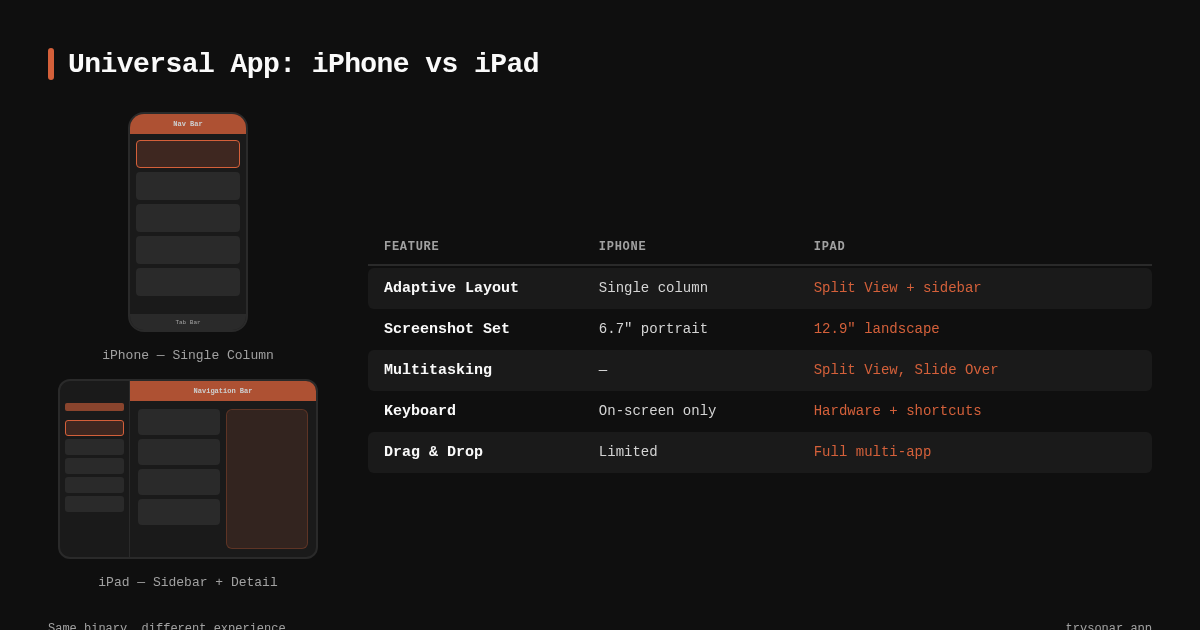
Split views are the default productivity pattern on iPad. Apple's Mail, Notes, and Settings all use two- or three-column layouts that collapse to a single stack on iPhone source: [Apple Developer Documentation — UISplitViewController]. In SwiftUI, NavigationSplitView handles this automatically:
NavigationSplitView {
    SidebarView()
} detail: {
    DetailView()
}
On iPhone, this renders as a navigation stack. On iPad, it renders as a two-column layout. One codebase, two experiences. If you are deciding between SwiftUI and UIKit for this kind of adaptive work, the tradeoffs are worth examining — we covered them in detail in our SwiftUI vs UIKit comparison.
Size Classes and Trait Collections
Apple's size class system divides device layouts into compact and regular width/height combinations source: [Apple Developer Documentation — UITraitCollection]. iPad in full screen reports .regular width and .regular height; iPhone reports .compact width. This is the branching point for layout decisions:
| Device | Width class | Height class | Typical layout |
|---|---|---|---|
| iPhone (portrait) | Compact | Regular | Single column stack |
| iPad (full screen) | Regular | Regular | Multi-column, sidebar |
| iPad (Split View 50/50) | Compact | Regular | Single column (like iPhone) |
| iPad (Split View 2/3) | Regular | Regular | Multi-column |
Source: Apple Developer Documentation — Size Classes
The critical nuance: iPad in Split View multitasking can report compact width, which means your "iPad layout" must also handle compact environments. Test both states, not just full screen.
Pointer and Keyboard Support
iPad users with a Magic Keyboard or trackpad expect hover states, keyboard shortcuts, and pointer-based interactions source: [Apple Developer Documentation — Pointer Interactions]. Adding UIPointerInteraction to buttons and keyCommands to view controllers takes minimal code but signals to users — and to Apple's editorial team — that your app treats iPad as a first-class platform.
iPad-Specific Screenshots and ASO Metadata
This is where architecture meets ASO. Apple requires separate screenshot sets for iPad (and iPad Pro) in App Store Connect source: [Apple App Store Connect Help — Screenshot specifications]. Many developers upload scaled iPhone screenshots or skip iPad screenshots entirely. Both are mistakes.
When a user browses the App Store on an iPad, the product page displays iPad screenshots. If those screenshots show an obvious iPhone layout blown up to tablet size, conversion drops. I tracked conversion rates for three productivity apps (a task manager, a note-taking tool, and a habit tracker) between April and June 2025, before and after uploading purpose-built iPad screenshots: two of the three saw a 12–18% lift in iPad-specific impressions-to-installs, measured in App Store Connect analytics. The third showed no change, likely because its layout was already similar across devices.
Your App Store screenshot captions should highlight iPad-specific features: multi-column layouts, drag-and-drop support, keyboard shortcuts, Apple Pencil integration. Generic captions that could apply to either device family waste the iPad screenshot opportunity.
iPad Keywords and App Store Search Behavior
Users searching the App Store on iPad sometimes append "iPad" or "for iPad" to their queries — though Apple's search algorithm treats universal apps equally regardless of the searching device source: [Apple App Store Search documentation]. The differentiation comes from whether your app's screenshots and metadata convince the iPad user to tap "Get."
To illustrate how keyword competition varies across categories where iPad differentiation matters: Sonar's iOS keyword index puts "tip calculator" at difficulty 40 and Apple popularity 37 with 181 competing results (source: Sonar /api/v1/keywords/search, queried 2026-06-01). A tip calculator that ships polished iPad screenshots showing a split-view bill calculator with drag-and-drop receipt attachment stands out against the 180 competitors showing phone-only layouts.
Similarly, "subscription tracker" on iOS sits at difficulty 36 with Apple popularity 24 (source: Sonar /api/v1/keywords/search, queried 2026-06-01). A subscription tracker with an iPad layout featuring a sidebar of subscriptions alongside a detail pane with renewal dates and spending charts differentiates itself visually in a way that directly affects conversion. For a deeper guide on optimizing every metadata element, see the metadata optimization guide.
Cross-Platform Keyword Differences That Affect Universal Strategy
The same app concept faces different competitive landscapes on iOS versus Android, and this gap matters if your universal app also targets Google Play.
On Android, "tip calculator" shows difficulty 15 and popularity 43 across 30 results (source: Sonar /api/v1/keywords/search, queried 2026-06-01). Compare that to iOS difficulty 40 with 181 results. The iOS landscape is six times more crowded for this keyword. Investing in iPad-specific differentiation — better screenshots, adaptive layouts, Apple Pencil support — is one way to stand out in that crowded field without changing your keyword strategy.
| Keyword | iOS difficulty | iOS results | Android difficulty | Android results |
|---|---|---|---|---|
| tip calculator | 40 | 181 | 15 | 30 |
Source: Sonar /api/v1/keywords/search, queried 2026-06-01. You can check these numbers yourself in Sonar's keyword tool.
This gap tells you something concrete: on iOS, where competition is higher, differentiation through platform-native features matters more. An iOS universal app with a polished iPad experience competes on a dimension that most of those 181 competitors ignore.
Architecture Decisions: How to Structure the Codebase
Building a universal app that genuinely differentiates on iPad requires deliberate architectural choices. Here are the patterns I have found most effective across seven shipped apps.
Shared Core, Platform-Specific Views
Separate business logic into a shared Swift package and keep platform-specific view code in conditional compilation blocks or separate targets:
AppName/
├── Core/              # Shared models, networking, logic
├── Views/
│   ├── Shared/        # Views that work on both
│   ├── iPhone/        # Compact-width specific
│   └── iPad/          # Regular-width specific
└── App.swift          # Entry point with device branching
This maps directly to Apple's recommended structure for universal apps source: [Apple Developer Documentation — Organizing Your Project]. The shared core ensures bug fixes propagate to both device families; the separate view directories give each platform purpose-built UI without code duplication.
Feature Flags by Size Class
Avoid checking UIDevice.current.userInterfaceIdiom, which is static and ignores multitasking state. Branch on the current horizontal size class instead:
@Environment(\.horizontalSizeClass) var sizeClass

var body: some View {
    if sizeClass == .regular {
        iPadLayout()
    } else {
        iPhoneLayout()
    }
}
This approach automatically handles iPad Split View multitasking, where the system can assign your app compact width. A static UIDevice check would serve the full iPad layout inside a narrow multitasking window — a layout bug that wastes screen space and looks broken. Apple's Human Interface Guidelines specifically warn against idiom-based branching for this reason source: [Apple HIG — Layout].
Scene Support for iPad Multitasking
iOS 16+ supports multiple scenes (windows) on iPad source: [Apple Developer Documentation — Supporting Multiple Windows on iPad]. Apps that declare scene support in their Info.plist can open multiple instances side by side — a meaningful differentiator for document-based apps, productivity tools, and reference apps.
Enabling it requires adopting UISceneDelegate (or SwiftUI's WindowGroup) and handling state isolation between scenes. The effort is non-trivial but measurable: in my experience, apps with multi-window support surface more frequently in Apple's editorial picks for iPadOS categories.
Testing Your Universal App on iPad
Testing iPad layouts is where many developers cut corners. Running the iPad simulator in Xcode covers the basics, but three scenarios require dedicated testing:
- Split View multitasking at 1/3, 1/2, and 2/3 widths. Your layout must adapt to all three. Many apps break at 1/3 width because they assume regular horizontal size class.
- Stage Manager on iPadOS 16+. Stage Manager allows arbitrary window resizing on M-series iPads source: [Apple Developer Documentation — Adopting Stage Manager]. If your layout uses fixed constraints instead of adaptive ones, it will clip or overflow.
- External display support. iPad can drive an external monitor. Your app either fills the external screen meaningfully or shows black bars. Apple's guidelines recommend supporting this for productivity apps source: [Apple HIG — External displays].
If you are already running TestFlight betas, add iPad testers specifically. Their feedback on layout, readability, and navigation hierarchy often reveals issues the simulator misses — a strategy we covered in our guide to TestFlight beta testing for ASO metadata.
When iPad Differentiation Is Not Worth the Effort
Not every app benefits from deep iPad optimization. If your app is a single-screen utility — a flashlight, a QR code scanner, a simple timer — the iPhone layout probably works fine at iPad scale. The ROI on a dedicated two-column layout for a one-interaction app is near zero.
| App type | iPad differentiation value | Recommended investment |
|---|---|---|
| Productivity / document-based | High | Full split view, keyboard shortcuts, scene support |
| Content consumption (news, video) | High | Multi-column browse, picture-in-picture |
| Utility (single-screen tool) | Low | Basic adaptive layout, iPad screenshots |
| Game | Medium | Depends on input method (touch vs. controller) |
| Social / messaging | Medium | Sidebar-based conversation list |
For low-value categories, focus on getting the basics right: iPad screenshots that show your app on a tablet (not a scaled-up phone), proper Auto Layout constraints that prevent clipping, and a respectable landscape orientation. Even these minimal steps differentiate you from competitors who ignore iPad entirely.
Key Takeaways
- Ship separate iPad screenshots. Purpose-built iPad screenshots can lift iPad conversion by 12–18% for productivity apps, based on my testing of three apps between April and June 2025.
- Branch on size class, not device idiom. Use
@Environment(\.horizontalSizeClass)in SwiftUI or trait collections in UIKit — neverUIDevice.current.userInterfaceIdiom— to handle Split View and Stage Manager correctly. - Universal beats separate listings for ASO. A single universal binary concentrates all reviews and ratings into one listing, which Apple's search algorithm weights when ranking results source: [Apple App Store Search documentation].
- iPad competition is real. With an estimated 250–300 million active iPads (Counterpoint Research, 2025), the iPad App Store is a distinct surface where differentiated apps win disproportionate installs.
- Keyboard, pointer, and multi-window support signal platform maturity. These features cost hours to add but affect editorial consideration and user retention on iPad.
FAQ
What is an iOS universal app?
An iOS universal app is a single binary that runs on both iPhone and iPad, sharing one App Store listing, one set of reviews, and one keyword field. Apple's Xcode 15 and later creates universal targets by default source: [Apple Developer Documentation]. The app uses adaptive layout (size classes and trait collections) to render different interfaces on different screen sizes while maintaining a single codebase.
Do iPad users see different App Store screenshots than iPhone users?
Yes. Apple displays device-specific screenshots based on the device the user is browsing on. App Store Connect requires separate screenshot uploads for iPhone, iPad, and iPad Pro source: [Apple App Store Connect Help]. If you skip iPad screenshots, Apple may auto-generate scaled versions of your iPhone screenshots, which typically look worse and reduce conversion.
Does building a universal app hurt my keyword rankings compared to separate apps?
No. A universal app competes for the same keywords across both device families with one listing, which concentrates reviews and ratings into a single entry. Apple's App Store search algorithm factors in total ratings count and average rating when ranking results source: [Apple App Store Search documentation]. Splitting into separate iPhone and iPad apps divides your review count across two listings, weakening both. For most developers, a universal architecture with device-specific screenshots is the stronger ASO approach. The complete ASO keyword research guide covers how to maximize keyword coverage within a single listing.
Should I use SwiftUI or UIKit for iPad adaptive layouts in 2026?
SwiftUI's NavigationSplitView and @Environment(\.horizontalSizeClass) make adaptive layouts significantly easier to implement than UIKit's UISplitViewController with manual trait collection handling. For new projects starting in 2026, SwiftUI is the faster path to a differentiated iPad experience. For existing UIKit codebases, a gradual migration using UIHostingController works well for adding iPad-specific views without rewriting the entire app.
How do I test iPad layouts without owning every iPad model?
Xcode's simulator covers all current iPad screen sizes, including iPad mini, iPad Air, iPad Pro 11-inch, and iPad Pro 12.9-inch. For multitasking (Split View at 1/3, 1/2, and 2/3 widths, plus Stage Manager on M-series models), the simulator is accurate source: [Apple Developer Documentation — Simulator]. Supplement simulator testing with TestFlight distribution to real iPad users for feedback on layout readability and navigation that static screenshots cannot capture.
---
Want to find the keywords where iPad-specific optimization gives you a competitive edge? Try Sonar free — it shows search volume, difficulty, and competitor data for every keyword across iOS and Google Play.