sonar
sonar
How to respond to App Store reviews without escalating
A review reply is public support. Apple and Google Play each allow a single public developer response per customer review, so write something useful to the reviewer and understandable to someone considering your app. Apple response documentation, Google Play response documentation.
My recommendation for how to respond to app store reviews: acknowledge the specific problem, state what you actually know, offer a concrete next step, and return when you have a verified update. Keep help unconditional. Never ask for a rating change, offer rewards for removing criticism, or make assistance depend on editing a review.
This guide covers how to respond to app store reviews from customers. Apple's App Review messages concern your submission and use a separate workflow; follow Apple's submission-message instructions for rejection or approval questions.
By Peter. Platform documentation checked September 17, 2026. The response framework, prioritization worksheet, and templates below are editorial recommendations and hypothetical examples, not measured results.
A response framework: acknowledge, clarify, route, return
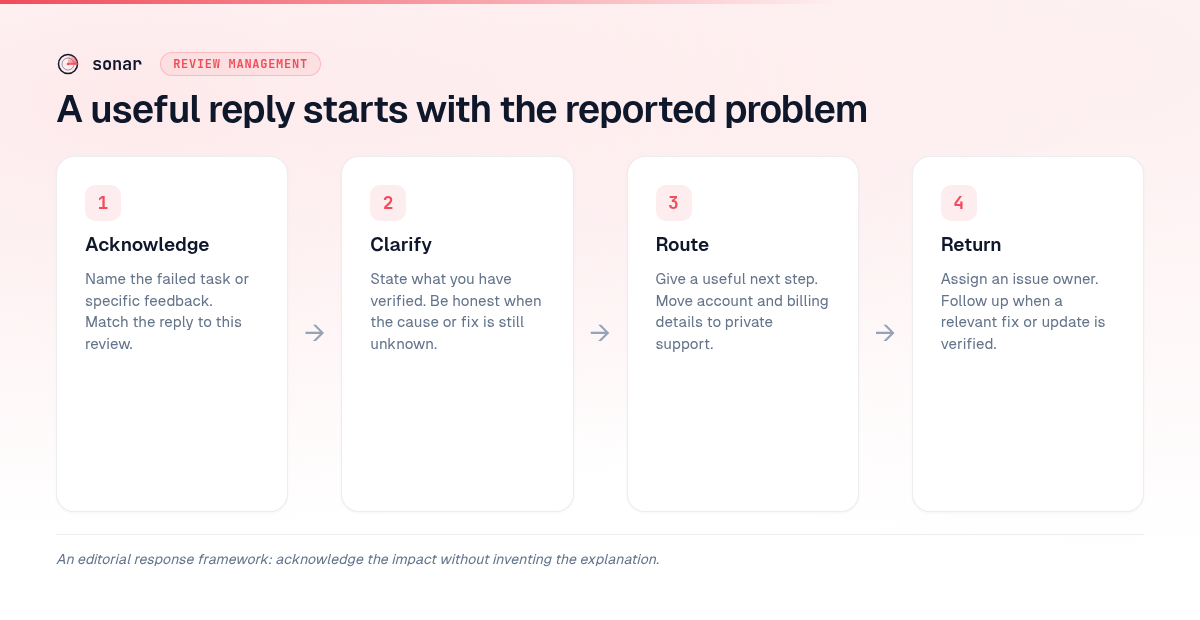
When deciding how to respond to app store reviews, separate the customer's reported experience from your diagnosis. You can acknowledge a failed export without claiming you have reproduced the bug. Apple's guidance supports concise, respectful, personalized replies and advises against including private information or marketing language. Apple's review guidance.
Use this editorial framework before drafting:
| Step | What to include | What to check |
|---|---|---|
| Acknowledge | The task that failed or the feedback offered | Does the opening match this review? |
| Clarify | A verified fact or an honest statement of uncertainty | Have you actually confirmed the cause or fix? |
| Route | A useful action, support channel, or correct billing destination | Can the user follow it without posting private details? |
| Return | A follow-up after a relevant change | Who owns the issue and the public update? |
Start with the failed task: “Sorry the export stopped before finishing.” Avoid diagnosing the cause from the review alone. If you need investigation, say what information would help and provide a working support address.
Keep the public next step small. For a crash, request the app version and the action that triggered it through support. For a refund, identify the billing provider before suggesting a destination. For praise, a specific thank-you can finish the response without creating more work for the reviewer.
Before publishing, read the reply as an instruction: could the customer act on it immediately? Replace “contact us” with the actual route. Replace “soon” with a verified status or leave the timing out. My rule is simple: acknowledge the impact without inventing the explanation.
How to respond to App Store reviews in each console
Publish customer replies through the store's review area. On Apple, use App Store Connect; on Google Play, use Play Console. Follow the relevant workflow below, then keep a private record of the issue and any follow-up you owe.
Apple: reply through Ratings and Reviews
Submit your reply in App Store Connect under your app’s Ratings and Reviews section. Apple requires the Account Holder, Admin, or Customer Support role. A response can take up to 24 hours to appear. Apple's permissions and publication guidance.
- Open Apps and select your app.
- Choose Ratings and Reviews, then the relevant platform.
- Find the customer review and select Reply.
- Enter your response and select Submit.
Apple also lets you edit or delete a response. Apple's reply workflow. Check whether your existing response is pending before treating a missing public reply as a submission failure.
Google Play: reply through Reviews
Google requires the Reply to reviews permission. Reviewers receive push and email notifications after a reply. Google's permissions and notification guidance.
- Open your app in Play Console.
- Go to Ratings and reviews > Reviews.
- Enter the response in Your reply beneath the review.
- Select Publish Reply.
You can edit the response later. Google's publishing instructions. Review any suggested wording before publishing; verify that it describes your app's actual behavior and points to your support channel.
Templates for bugs, refunds, anger, requests, and praise
Use these hypothetical templates as starting points for how to respond to app store reviews. Replace bracketed placeholders, verify every product statement, and remove sentences that do not fit the case. They are original examples, not customer conversations or evidence of improved ratings.
The templates are deliberately short. Google's Reply to Reviews API limits replyText to 350 characters; recheck the final response after replacing placeholders, especially long support URLs. This is Google's API limit, not a claimed Apple limit. Google API documentation.
1. A bug or crash report
For a bug report, acknowledge the interrupted task and request the minimum information needed to investigate. Use this example when you have not yet confirmed the cause:
> Sorry [task] is failing. Please contact [support channel] with your app version and what happened just before the failure so we can investigate. Keep account details out of the public review.
Before posting, check whether the review already includes the requested details. If it names the app version and trigger, don't ask the customer to repeat them. Give a verified workaround only after checking it against the reported failure; don't suggest deleting the app as a reflex.
In your private issue record, distinguish “reported,” “reproduced,” and “fixed.” Reserve “fixed” for a change you have verified in the relevant released build.
2. A refund or unexpected charge
For refund complaints, route by the billing provider. Apple directs refund requests for Apple purchases to reportaproblem.apple.com, with eligibility conditional. Google lets developers manage orders and issue refunds through Play Console. Apple refund instructions, Google developer refund instructions.
Apple-billed purchase example:
> Sorry this charge was unexpected. For a purchase billed by Apple, request a refund at reportaproblem.apple.com; approval depends on eligibility. For help understanding the app's paid features, contact [support channel].
Google Play purchase example:
> Sorry this charge was unexpected. Contact [support channel] privately with your Google Play order ID so we can check the purchase and explain the refund options. Please don't post payment details here.
For a Google refund investigation, use Order management to locate the purchase before taking action. Google's order workflow. If another merchant billed the customer, route the request to that merchant instead of sending them through an unrelated store process.
Keep billing resolution independent of the review. Don't promise approval or announce a refund publicly before verifying the transaction.
3. An angry review with no useful detail
For “useless app” or similarly vague criticism, ask about the failed task without arguing over the tone. My recommended template leaves room for a concrete answer:
> Sorry the app let you down. What were you trying to do when it went wrong? Please share the steps at [support channel] so we can investigate the right issue.
Avoid opening with “it works for everyone else” or “you misunderstood.” Do not guess that the reviewer used the app incorrectly. If the next message supplies a reproducible problem, move it into the bug workflow.
When considering how to respond to app store reviews that contain insults, separate the support issue from moderation. Apple provides a reporting route for reviews that violate its terms; use that process for violations. Apple's reporting guidance. Don't treat ordinary criticism as grounds for removal.
4. A feature request you cannot promise
For feature requests, describe the current state and ask about the intended task. Use this hypothetical example only when the requested feature is genuinely unavailable:
> Thanks for explaining why [feature] would help. It isn't available, and we don't have a release date to share. What would you use it for? Send your use case to [support channel] so we can consider it during planning.
Replace the final sentence if you have no process for considering requests. Avoid “added to the roadmap” unless the team has actually committed to it.
Privately, record the desired outcome alongside the requested feature. For example, label a hypothetical request for spreadsheet export with the task “share monthly totals with an accountant.” Use that distinction when assessing possible solutions.
5. A positive review
For praise, thank the reviewer for the specific benefit they described. Keep the response complete without a sales pitch or another request:
> Thanks for sharing this. We're glad [specific feature] helped with [task]. We appreciate you taking the time to tell us what worked.
Only fill those placeholders with details the reviewer actually supplied. For a short “love it” review, a short thank-you is enough; don't invent a use case to make the response look personalized.
Keep review collection in a separate workflow. See the guide to asking for app reviews when planning prompts inside your app.
How should you prioritize and follow up?
Prioritize unresolved technical problems and reviews where you can provide concrete help. Apple explicitly recommends prioritizing low ratings or feedback about current technical issues and following up after fixes. Apple's response priorities.
For an indie team deciding how to respond to app store reviews with limited support time, I recommend the following editorial worksheet:
| Review type | Internal action | Follow-up trigger |
|---|---|---|
| Crash or blocked task | Assign an issue owner and investigate | A verified fix or useful workaround is available |
| Unexpected charge | Check the billing route privately | You have a verified purchase status or next step |
| Vague complaint | Request the missing task details | The customer provides actionable information |
| Feature request | Record the use case without promising delivery | A relevant feature actually ships |
| Praise | Acknowledge the specific feedback | No follow-up needed unless a question remains |
Keep the review reference, issue owner, support status, and public response together. Mark “reply sent” separately from “problem resolved.” For a solo developer, that can be a simple worksheet rather than a new support system.
Apple recommends notifying reviewers when an update addresses their feedback. Apple's follow-up guidance. After verifying the released fix, adapt this hypothetical response:
> Update: [version] fixes the [specific issue] you reported. Please update when convenient. If it still happens, contact [support channel] with your app version so we can investigate further.
For evaluating how to respond to app store reviews, track unanswered actionable reviews, issues awaiting investigation, and fixes awaiting public follow-up. These are my recommended operational measures, not industry benchmarks. Record rating changes separately; don't promise that replies will improve ratings or search rank.
Google's review analysis separates users who updated reviews after replies from those who updated without replies. Google's review analysis documentation. Treat that comparison as descriptive: it does not isolate the effect of your wording from a product fix or other changes. For broader context, read App Store ratings and rankings.
FAQ
How do I decide how to respond to app store reviews that are negative?
Use the reported task to choose the response: investigate bugs, route billing questions, and ask for missing details when the complaint is vague. My recommendation is to acknowledge the impact and offer a concrete next step without debating the score. Never make help conditional on changing the review.
Can developers edit their review replies?
Yes, both Apple and Google Play allow developers to edit their public responses. Use an edit to replace an outdated investigation message with a verified fix or current next step. Apple response editing, Google response editing.
Should I send every refund complaint to Apple?
No: Apple's refund process applies to purchases billed by Apple, and approval depends on eligibility. Check the billing provider before routing the request; Google Play also provides developer refund controls. Apple refund guidance, Google refund controls.
Do replies guarantee better ratings?
No rating improvement should be promised. Apple says reviewers are notified and can update their reviews; that is an opportunity, not a guaranteed outcome. Judge your support work by whether you provided accurate help and followed through. Apple's reviewer notification guidance.
Bring the same care to your wider ASO work with Sonar. Start free trial.