sonar
sonar
Google Play app rejected? Start with the enforcement status
A rejected Google Play update leaves the previously published version available. Removal and suspension have different consequences, so open your app’s Policy status in Play Console before changing anything. Google’s policy status guide explains where to find the action and its details.
If you’re searching “google play app rejected,” start by recording the actual status, policy name, affected submission, and any screenshots or instructions in the notice. Use that record to choose the recovery path below.
| Action | What it means | Recovery path |
|---|---|---|
| Rejection | The submitted app or update is not published; an existing published version remains available. | Correct the violations and resubmit, or appeal an error. |
| Removal | The app and its previous versions are unavailable for new downloads. | Submit a compliant update for review. |
| Suspension | The app is unavailable, and the action counts against account standing. | Use the appeal process to seek reinstatement. |
| Account termination | All apps in the account are removed; publishing new apps is blocked. | Follow the account enforcement appeal instructions; opening another account is not a workaround. |
Sources: Google’s enforcement process and publishing status definitions.
Editorial approach: treat the notice as a debugging brief. The worksheet below is a recommended investigation process, not Google’s checklist or a guarantee of approval. The causes covered here are policy categories to investigate, not a measured ranking of rejection frequency.
Reviewer access and data declarations: check these first
For a Google Play app rejected over access or data handling, compare the submitted build with the information supplied in Play Console. Google requires working reviewer access and accurate declarations covering third-party SDKs. See its sign-in requirements and Data safety guidance.
Reviewer credentials do not unlock the app
Google requires reusable credentials that remain valid regardless of the reviewer’s location. Instructions must be in English, and reviewers need access to subscription content without paying; an expiring password or inaccessible authentication step can prevent review. Source: Google’s sign-in requirements.
For a Google Play app rejected over reviewer access, I recommend this test: install the submitted build on a clean device and follow only the instructions you supplied. Check that the reviewer can reach the feature named in the rejection, including any premium screen. If normal authentication uses a one-time code, provide the reusable review access Google requests and test it end to end.
Hypothetical example: a subscription tracker’s demo account signs in successfully but cannot open renewal reminders because its entitlement expired. Update the entitlement and retest the complete path before submitting revised instructions. Do not mark the app unrestricted while a login or paywall still blocks functionality.
Data safety answers omit SDK behavior
Data safety declarations must include collection and sharing performed by libraries and SDKs, not just code you wrote. Google places responsibility for complete, accurate answers on the developer and can take action when behavior contradicts the declaration. Source: Google’s Data safety guidance.
For your investigation, inventory each analytics, advertising, authentication, and crash-reporting integration. Record its version, configuration, transmitted data, purpose, and the corresponding form answer. Consult the provider’s documentation, then inspect how you actually configured the integration.
If you have a Google Play app rejected for a data mismatch, recommend a specific resolution in your worksheet: remove unintended collection, correct inaccurate declarations, or do both. Avoid changing form answers until you understand the behavior you are declaring.
Privacy disclosures do not match the experience
Google requires a privacy policy in Play Console and a policy link or text inside the app. Where sensitive-data handling falls outside reasonable user expectations, the prominent disclosure must appear in the app’s normal flow before the required consent and access; a privacy-policy paragraph alone is insufficient. Source: Google’s User Data policy.
Recommended check: compare the policy, permission prompts, disclosure screens, and actual network behavior together. Record the exact screen where the user learns what is collected and why.
Account deletion and permissions: fix the underlying behavior
A Google Play app rejected over deletion or permissions needs a working implementation that satisfies the applicable policy. Google requires deletion paths for apps offering account creation, and sensitive permissions must support current, disclosed features. Sources: account deletion requirements, permissions policy.
Account deletion is missing or incomplete
If your app lets users create an account, provide an in-app deletion path and an external web resource for requesting deletion of the account and associated data. An app that directs users to create accounts on a website is also covered; optional accounts do not remove the obligation. Source: Google’s account deletion requirements.
Temporary deactivation does not qualify as deletion. If some data must be retained for legitimate reasons, such as fraud prevention or regulatory compliance, disclose those retention practices. Source: Google’s User Data policy.
Recommended test: create a disposable account, locate deletion without developer knowledge, submit the request, and verify the backend outcome. Open the external deletion link separately and repeat the request flow. Document any retained data and the explanation users receive.
Sensitive permissions lack a justified use
Google limits sensitive permissions and APIs to current features promoted in the listing. Restricted permissions carry additional requirements, and some uses require a declaration and approval during release review. Sources: permissions policy, permissions declaration guidance.
Recommended audit: inspect the final release manifest and map every sensitive permission to a visible user task. Remove unused requests, document the relevant policy’s permitted use, and test what happens when users decline. Do not justify access with a feature you merely plan to build.
For a hypothetical tracker that only needs users to type renewal dates, investigate whether a broad permission is necessary at all. Treat that as a product design question before writing a longer reviewer explanation.
Listing accuracy and functionality: check the shipped experience
A Google Play app rejected for metadata or functionality should be checked against the exact listing and release artifact under review. Google prohibits misleading metadata and apps that crash, fail to load, freeze, or lack adequate functionality. Sources: metadata policy, functionality policy.
The listing promises something the app cannot do
Google’s metadata rules cover descriptions, screenshots, titles, icons, and developer names. Titles are limited to 30 characters; titles, icons, and developer names must not advertise store rankings or price promotions. Repetitive or irrelevant keyword lists also violate the metadata rules. Source: Google’s metadata policy.
Recommended review: match every feature claim and screenshot to a reachable screen in the submitted version. Check localized assets too. In a hypothetical expense app, replace a screenshot promising automatic bank imports if that feature is unavailable in the submitted release.
For the copy rewrite, use the Google Play long description guide as an editorial companion. Keep Google’s policy as the compliance reference.
The release fails during a real user journey
Google’s functionality policy explicitly excludes apps that install but do not load or respond. A successful launch on your development device is therefore an incomplete test of the prohibited behaviors. Source: Google’s functionality policy.
Recommended regression pass: test clean installation, sign-in, permission denial, the main task, and recovery after interrupted connectivity. Inspect available pre-launch report results for device-specific failures. Google cautions that these reports cannot identify every issue, so use them alongside manual testing. Source: understanding pre-launch reports.
How to resubmit a Google Play app rejected in review
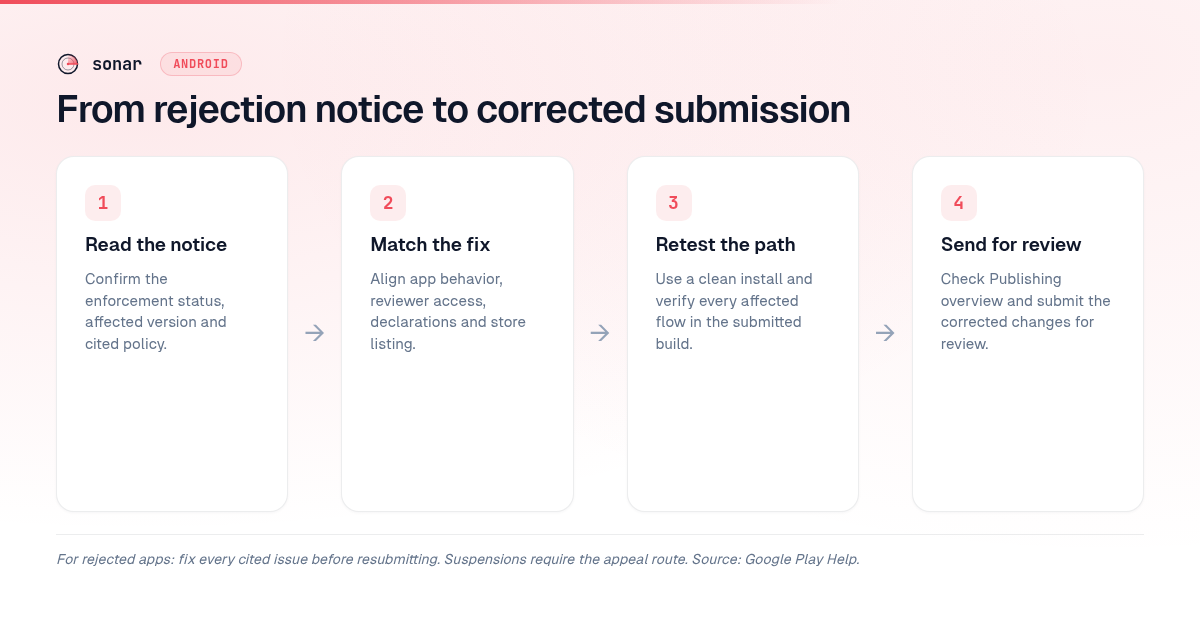
Correct the cited issues, test the corrected submission, and explicitly send the changes for review. Google says changes made after an update rejection are not automatically resubmitted; use Publishing overview → Send for review. Source: Google’s review and publishing workflow.
Use this editorial worksheet to organize the work. Keep a record for each issue, with an owner, evidence, and a clear retest result.
- Capture the notice. Save the policy name, package identifier, affected version or listing, and reviewer evidence. Copy the requested action into your task tracker without paraphrasing away useful detail.
- Reproduce the finding. Use the submitted artifact and reviewer account. Record the starting state, navigation path, and observed result; distinguish a confirmed defect from an assumption.
- Apply the relevant correction. Change code, backend behavior, metadata, access instructions, or declarations as appropriate. Track all related surfaces so the final submission tells a consistent story.
- Retest the correction. Repeat the original reproduction path, then test adjacent behavior. For example, after changing authentication, retest premium access and account deletion as well as login.
- Inspect the submission. Compare the release and pending Console changes with your worksheet. Make sure the intended correction is actually included before choosing Send for review.
- Monitor the outcome. Preserve the submission record and investigate any new notice on its own terms. Avoid treating an unchanged resubmission as a diagnostic experiment.
For an access-only correction, Google documents updating and saving sign-in details, then sending those changes from Publishing overview. Follow that route when the instructions are the problem; change the build when the defect is in the app. Source: preparing your app for review.
Before submission, also revisit applicable App content declarations, including ads, target audience, and content ratings. These are part of Google’s review preparation requirements.
When should you appeal instead of resubmitting?
Appeal a Google Play app rejected in error when you can explain why the reviewed behavior complies with the cited policy. Google directs developers who believe an enforcement decision is mistaken to the appeal instructions in the enforcement email or its appeal route. Source: managing policy violations and appeals.
Recommended appeal structure:
- Identify the decision: package name, version, notice date, and cited policy.
- State the disputed finding: describe precisely what you believe was misunderstood.
- Explain compliance: connect the actual behavior to the relevant policy language.
- Supply reproducible evidence: include navigation steps, screenshots, or a recording where the appeal channel permits them.
- Request a specific review: name the finding you want reconsidered.
Hypothetical example: if the notice says account deletion is absent, provide the exact navigation path and evidence from the reviewed build showing the request flow. If the path was actually missing, implement it and document the fix instead of presenting the old build as compliant.
Do not promise a release date while the submission is unresolved. Google notes that some reviews take up to seven days or longer in exceptional cases; this is not an approval deadline. Source: publishing guidance.
After approval, return to your Android ASO workflow. Keep keyword and conversion experiments in a separate task list from policy remediation so you can review each change against its purpose.
FAQ
Why was my Google Play app rejected?
Check Policy status and the enforcement notice for the specific violation and available evidence. Google uses that page to show active rejection, removal, or suspension actions and details that help developers address them. Source: checking policy status.
Can I resubmit without uploading a new build?
Yes, when the correction only concerns information such as reviewer sign-in details. Google documents saving revised access information and sending it for review through Publishing overview; a code defect still needs a corrected build. Source: preparing your app for review.
Does a rejected update remove my published app?
A rejection leaves the previously published version available. Removal and suspension are separate enforcement actions, so verify the status before assuming the live app has disappeared. Source: Google’s enforcement process.
Is there a fixed number of rejections before suspension?
Google’s enforcement documentation does not publish a universal rejection allowance. It says repeated rejections can lead to suspension and serious or repeated violations can lead to account termination; do not treat unsuccessful submissions as free retries. Source: Google’s enforcement process.
Ready to plan your app’s next ASO work? Start free trial with Sonar.